
This guide provides the step-by-step process of integrating your campaign with Instabuilder.
After going through this guide you will be able to:
Create Optin or a Lead page in Instabuilder
Create a Thank You page in Instabuilder
Integrate Opt-In and Thank You page with UpViral Referral System
Integrate your Instabuilder with UpViral
What to Prepare on UpViral:
First, make sure that your campaign is completed and ready to be installed. Check out How to create a campaign? for a step-by-step process on how to create and launch an UpViral campaign that's ready for installation.
CREATE AN OPT-IN PAGE
Now, this is the process where we will start creating Opt-In and Thank you pages in Instabuilder. The Opt-In Page will be the entry point into the giveaway. People will sign up for the giveaway via this page.
When the participants enter their information and signup for the giveaway, they will be directed to a thank you page, which acknowledges their participation and motivates them to share the giveaway with their friends and circles to increase their chances of winning.
Let us start with the opt-in page. Here are the steps:
Login to your WordPress Site Dashboard and click InstaBuilder.
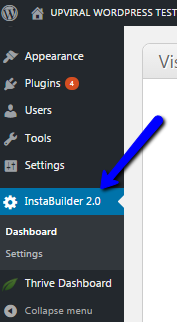
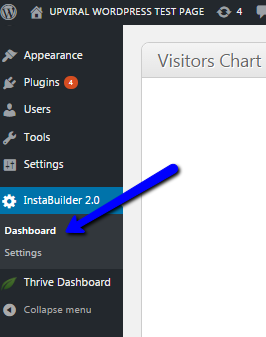
From the InstaBuilder menu, go to Dashboard.
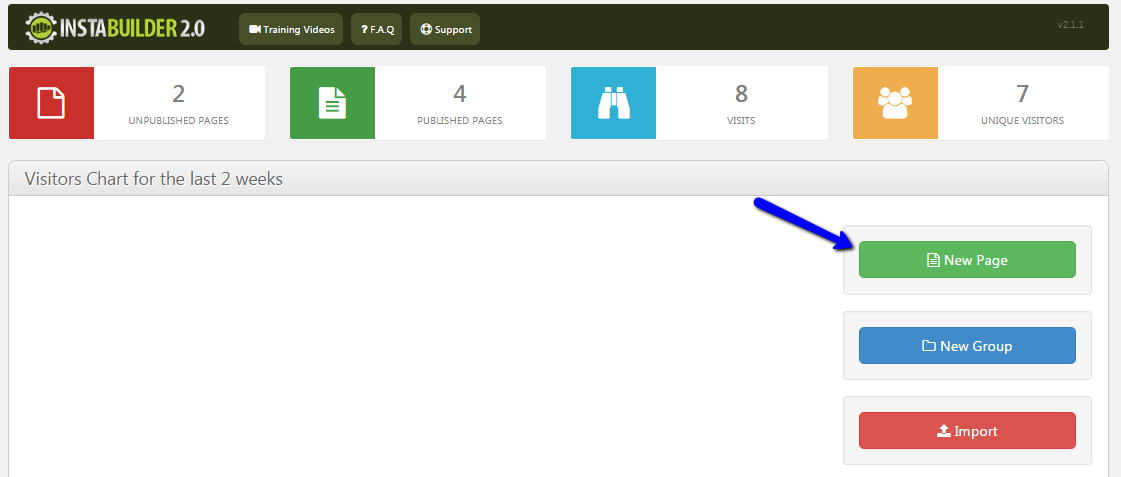
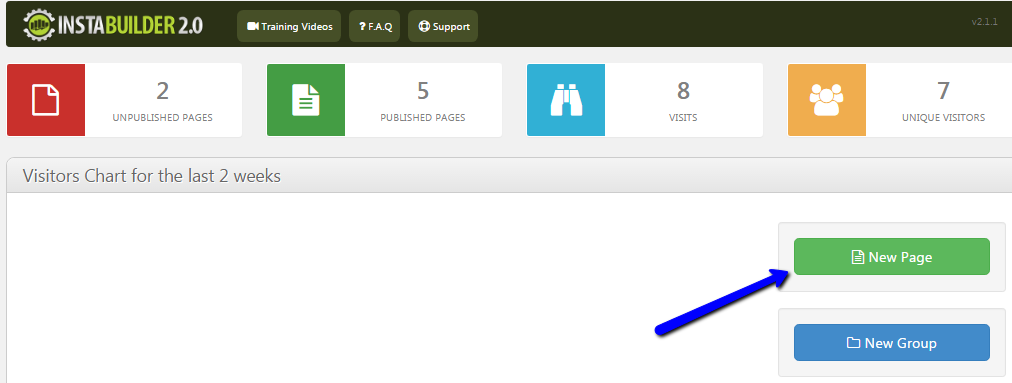
From the InstaBuilder Dashboard, click New Page.
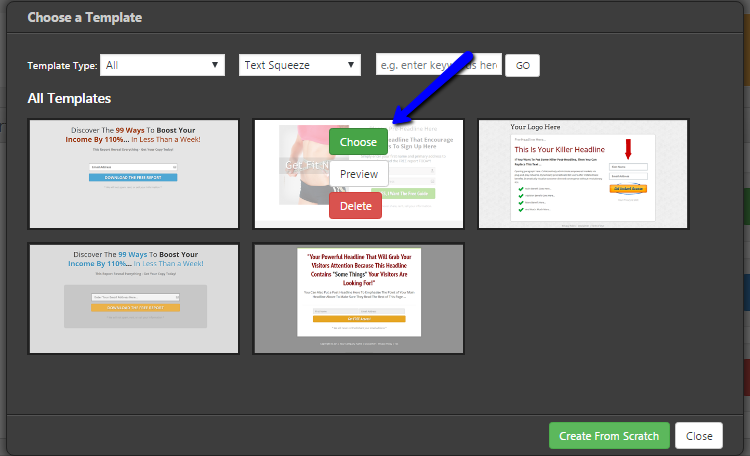
Choose a template. Select Text Squeeze to filter opt-in templates that enables someone to enter his name and email.
Select any template. In this case, we will be selecting the Get Fit Now template. Click Choose to select.
Click the form to make the form menu appear.
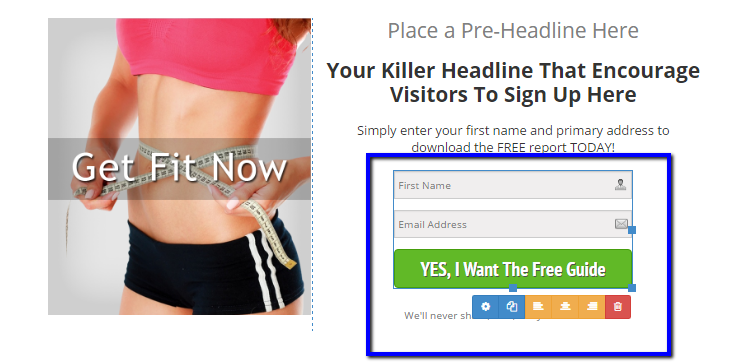
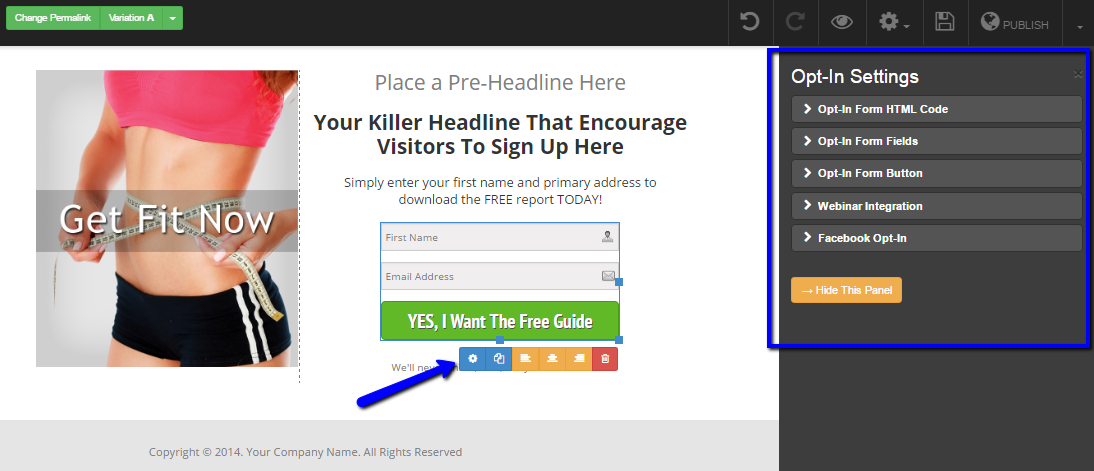
Click the gear to make the Opt-in Settings appear.
Installation & Embedding Your Campaign
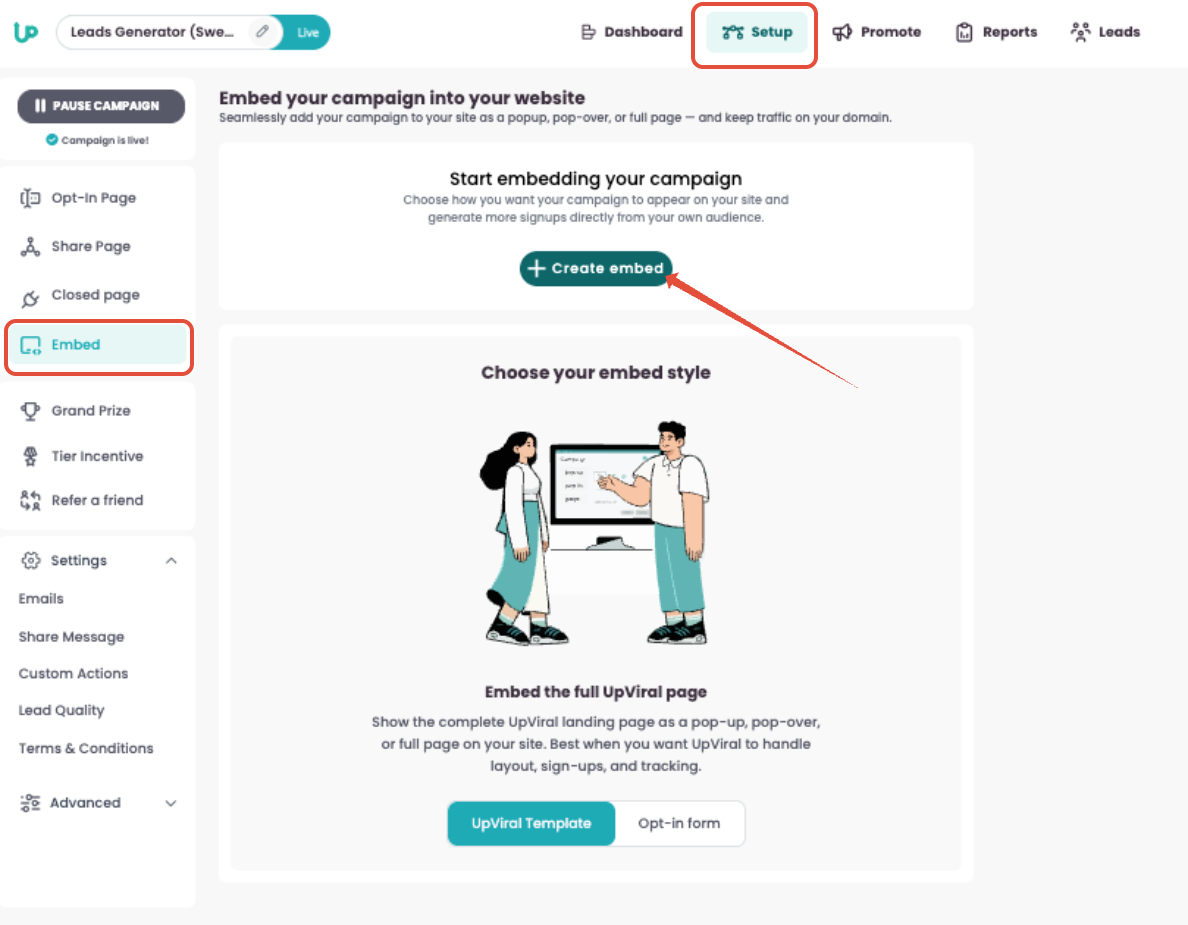
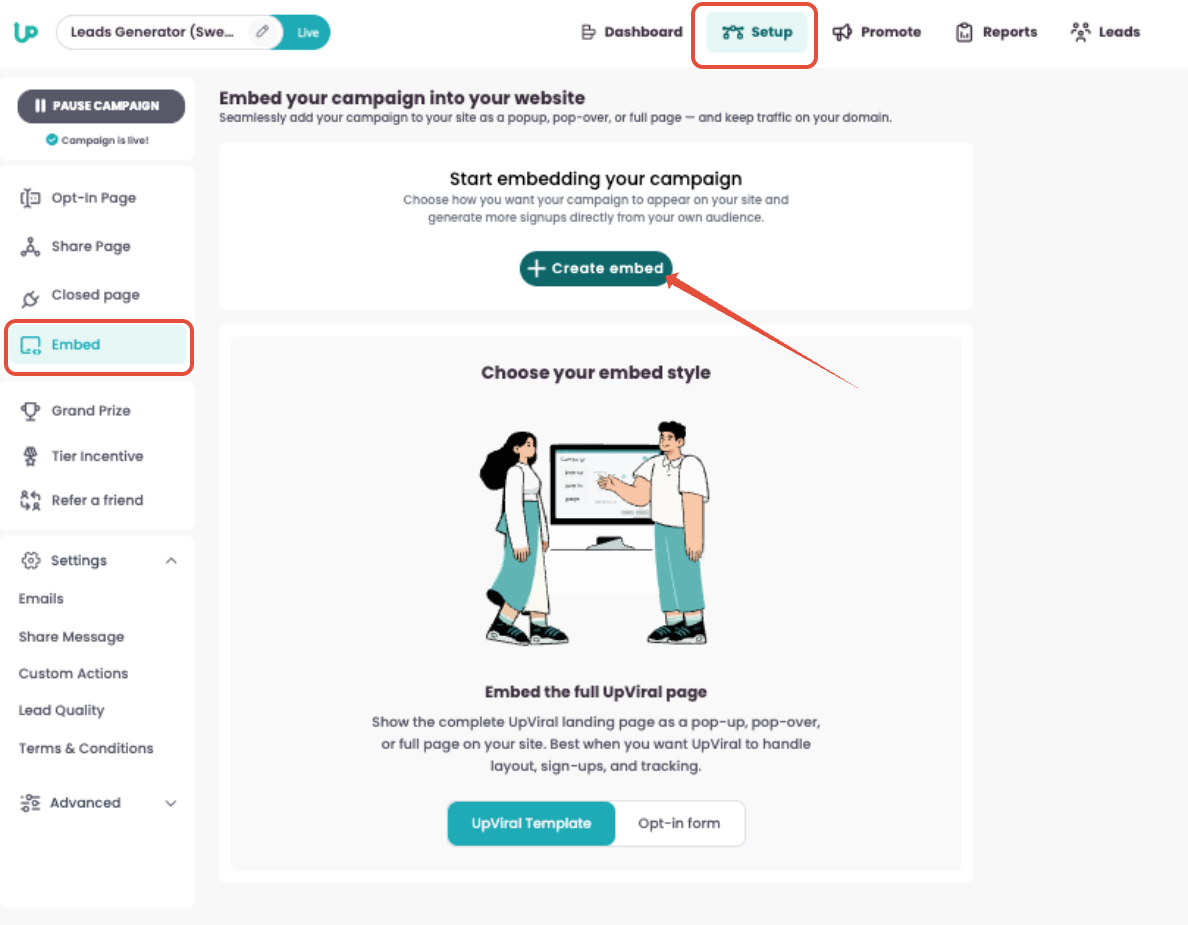
On the SETUP page, click Embed from the left-hand panel. Then click on + Create embed
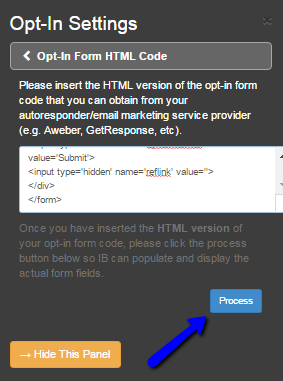
Click Process.
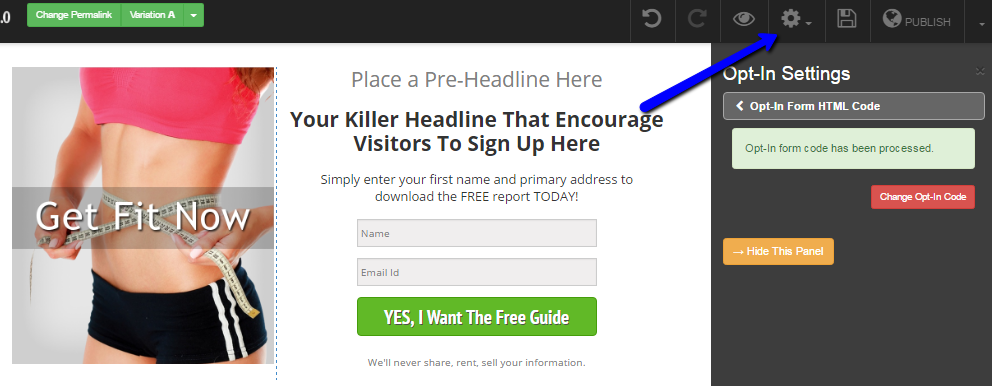
At the top (lower right part), click the huge gear icon.
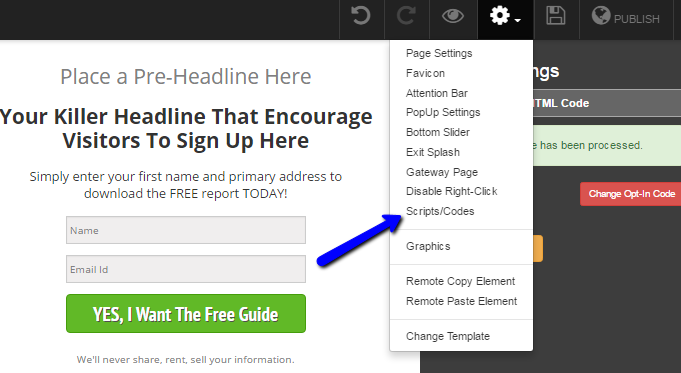
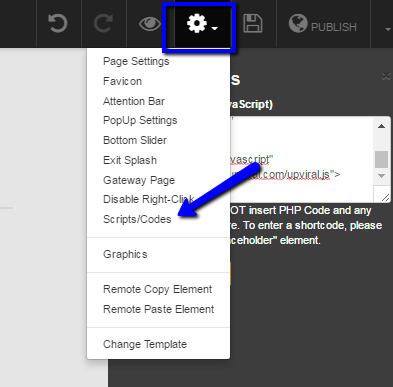
Under this menu, click Scripts/Codes.
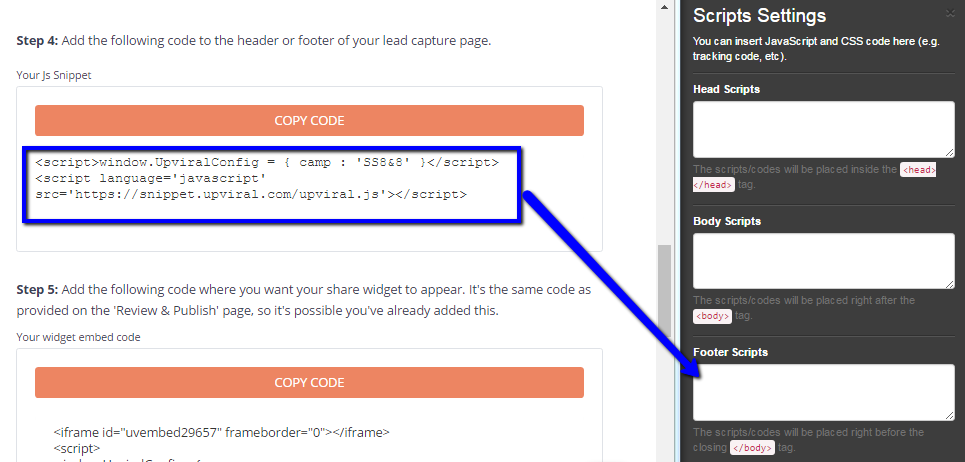
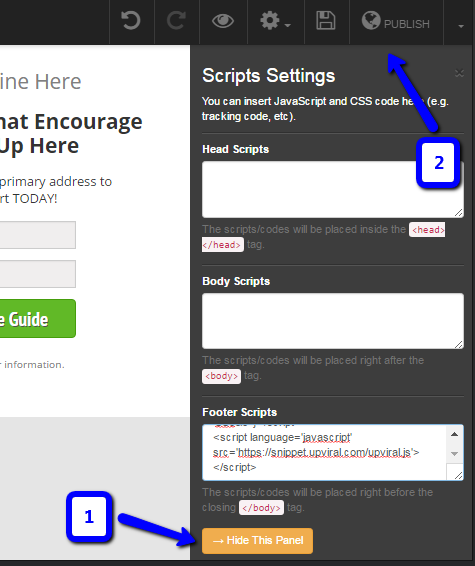
Under Footer Scripts of Script Settings, paste the code under Step 4: Add the following code to the header or footer of your lead capture page. of the integration page.
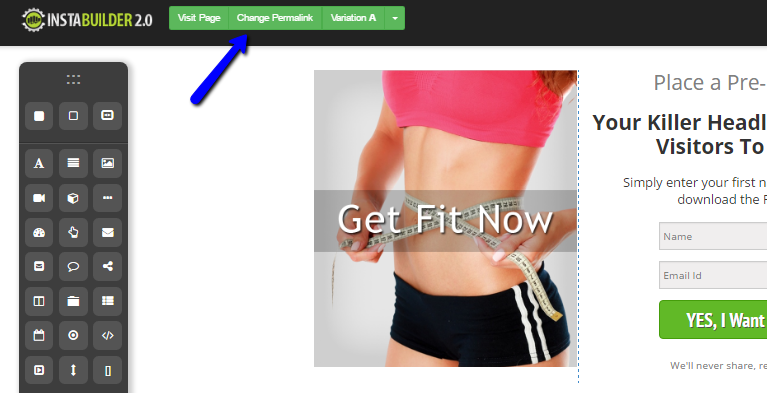
The name of the page defaults to the template name. To change the URL, click Change Permalink at the top.
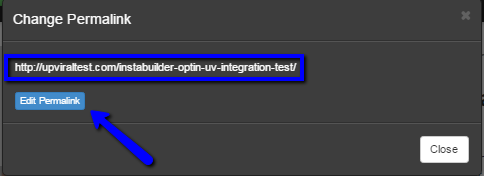
Click Edit Permalink. In this case, we will be naming it as upviraltest.com/instabuilder-optin-uv-integration-test/ (see screenshot below):
Click Hide This Panel and click PUBLISH at the top.
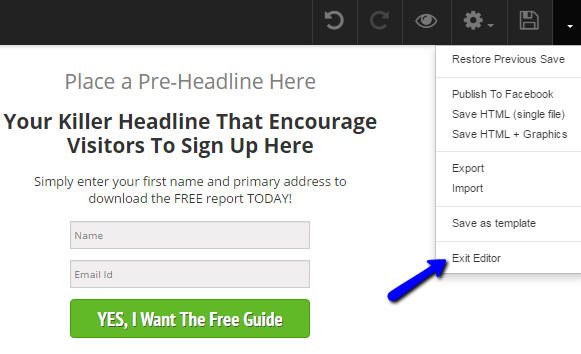
Click Exit Editor.
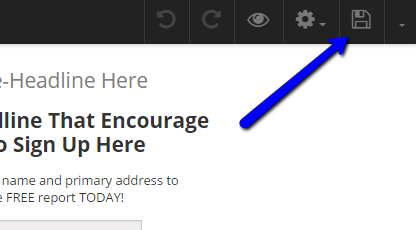
If you wish to go back to the page to edit any content or any part, do not forget to click the diskette icon at the top to save changes.
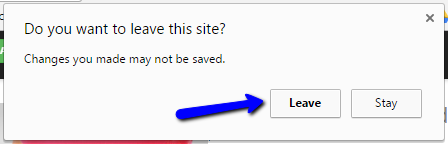
If promoted to a browser window to leave the site, just hit the option that allows you to leave.
From this point, the opt-in page using Instabuilder has been set up.
CREATE A THANK YOU PAGE
From the InstaBuilder menu, click New Page.
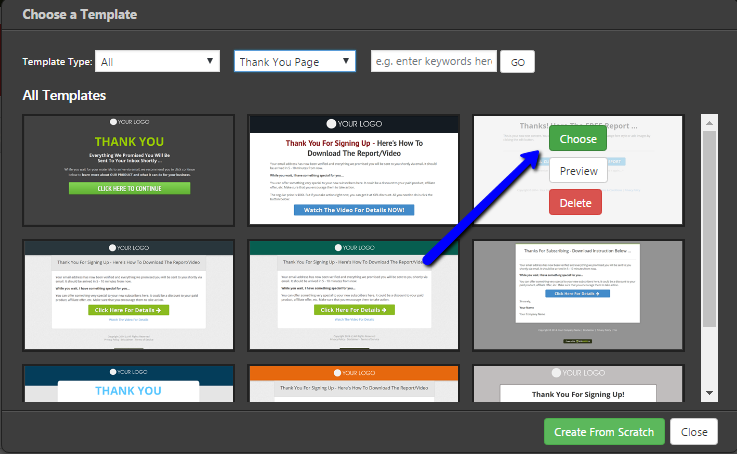
Choose a template. You can filter Thank You Page to only show thank you pages/templates.
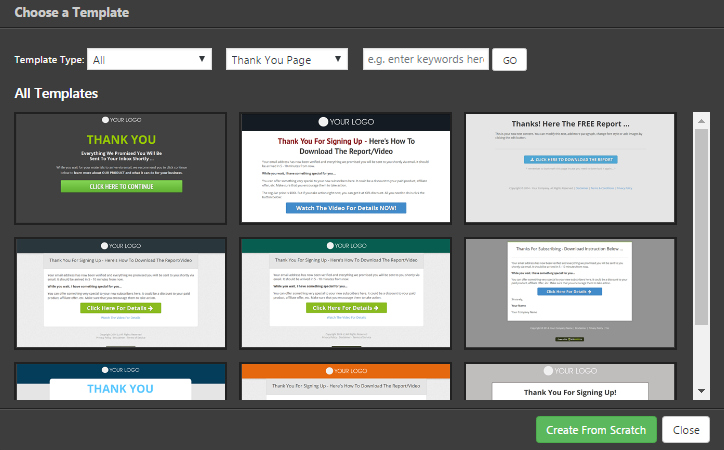
Click Choose to select.
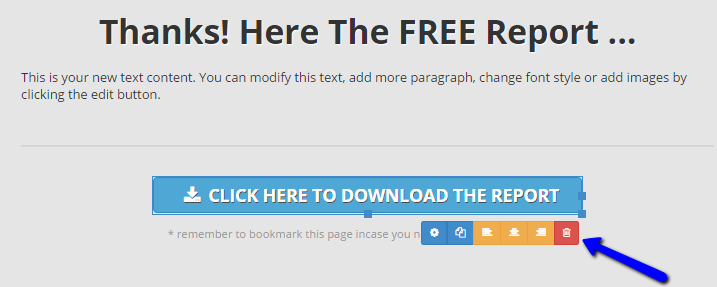
Remove the Click-to-Action button. Click the CTA button and delete the red trash bin icon.
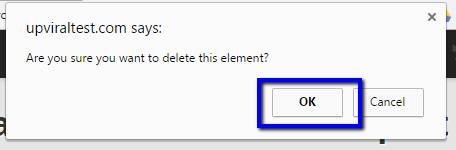
If prompted with a question to delete the element, click OK. (Screenshot below is from Chrome. It might be different for IE or Mozilla Firefox).
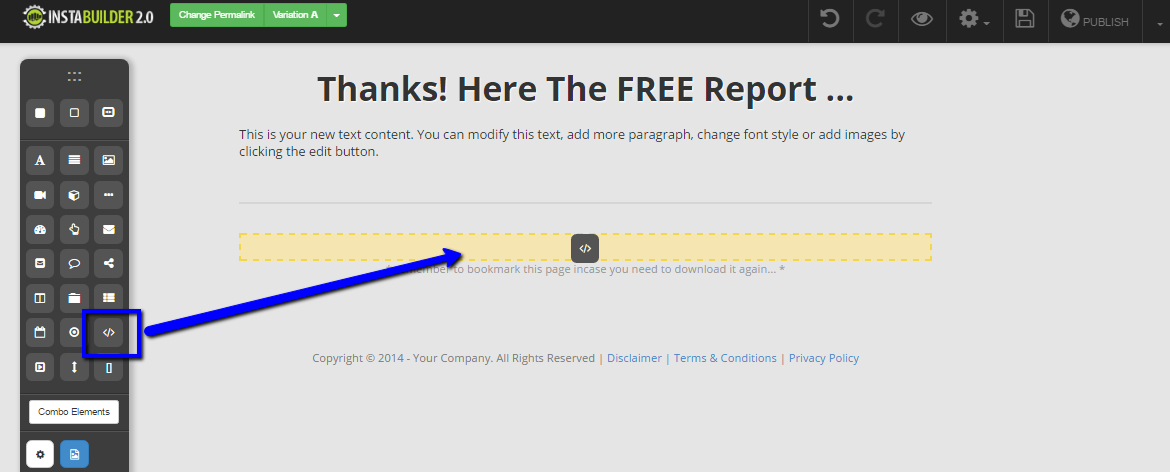
From the menu on the left side, click the HTML element (with </> symbol) and drag to any part of the form where to place the widget.
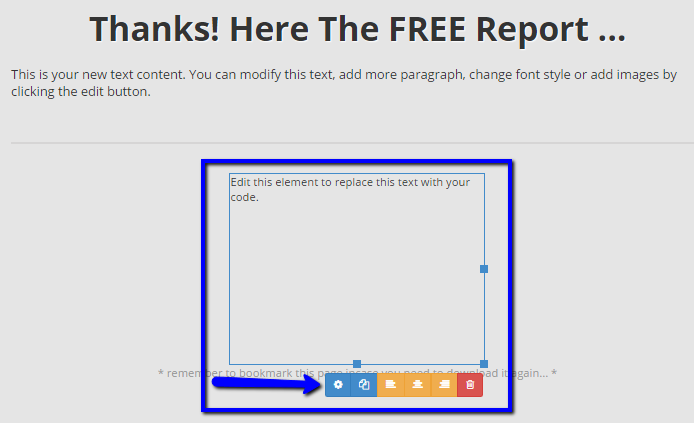
Click the box that says Edit this element to replace this text with your code. then click the gear to open up the Code Settings.
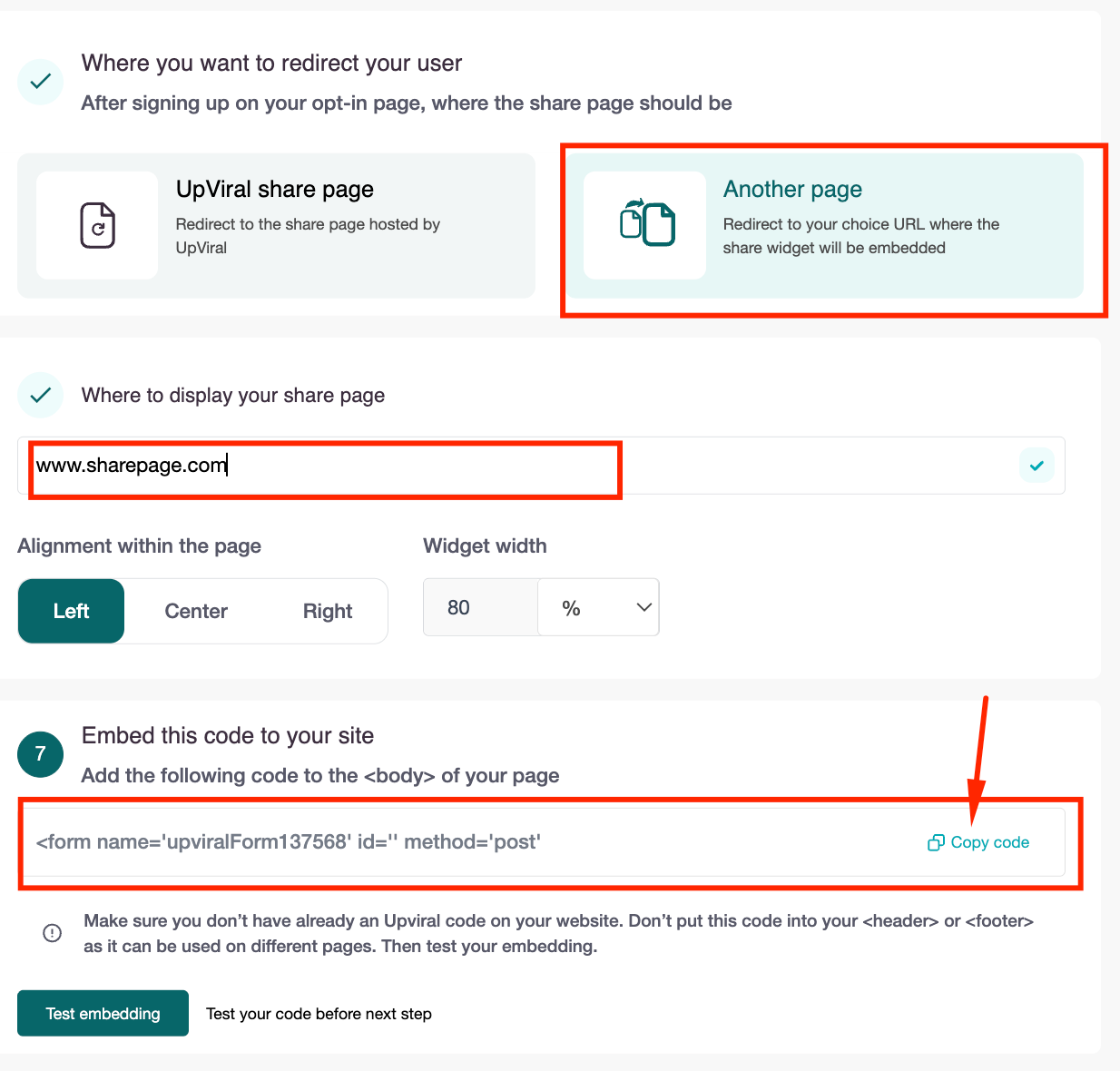
Go back to your Upviral campaigns Embed page. On “Where to Display Your Share Page,” select “Another Page” then specify the Share Page URL, adjust alignment and size, then embed the provided code into the <body> of your page (not in the <header> or <footer>). Avoid embedding multiple UpViral codes.
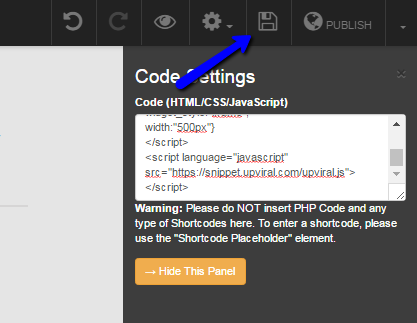
Click the diskette at the top to save the changes.
Click the big gear icon at the top and go to Scripts/Codes.
Go back to your Upviral campaign’s Embed page and copy the 2nd code from Step 4 and Add the code to the header or footer of your lead capture page and paste it under Footer Scripts of the Scripts Settings menu.
Click the diskette at the top and you should see the UpViral widget.
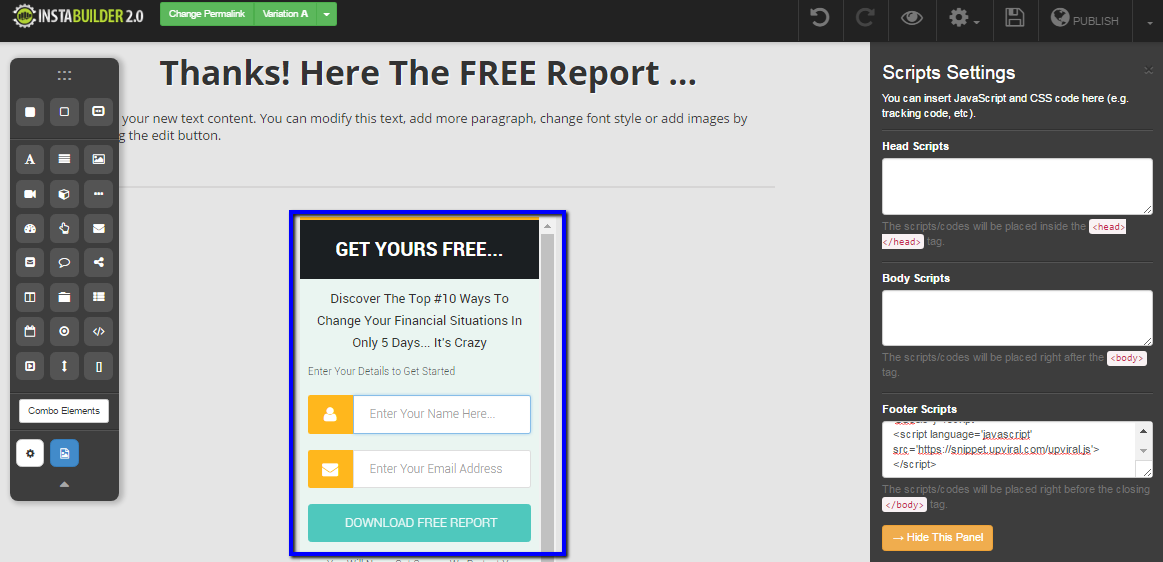
The name of the page defaults to the template name. To change the URL, click Change Permalink at the top.
Click Edit Permalink. In this case, we will be naming it as upviraltest.com/instabuilder-thankyou-uv-integration-test/ (see screenshot below):
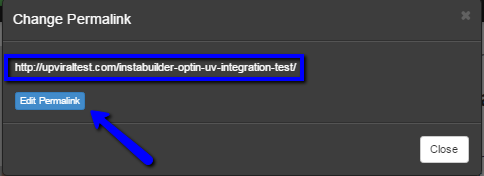
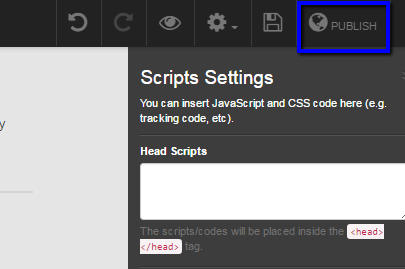
Click Close and publish the page by clicking PUBLISH at the top.
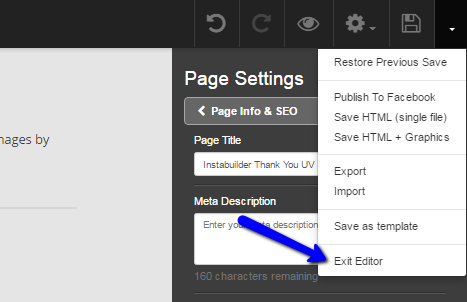
Exit out from the page editor by clicking the arrow pointing downwards and clicking Exit Editor.
If promoted to a browser window to leave the site, just hit the option that allows you to leave.
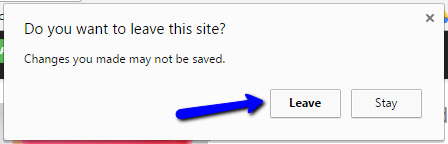
From this point, the Thank You page using Instabuilder has been set up.
Installation & Embedding Your Campaign
On the SETUP page, click Embed from the left-hand panel.
STEP 1
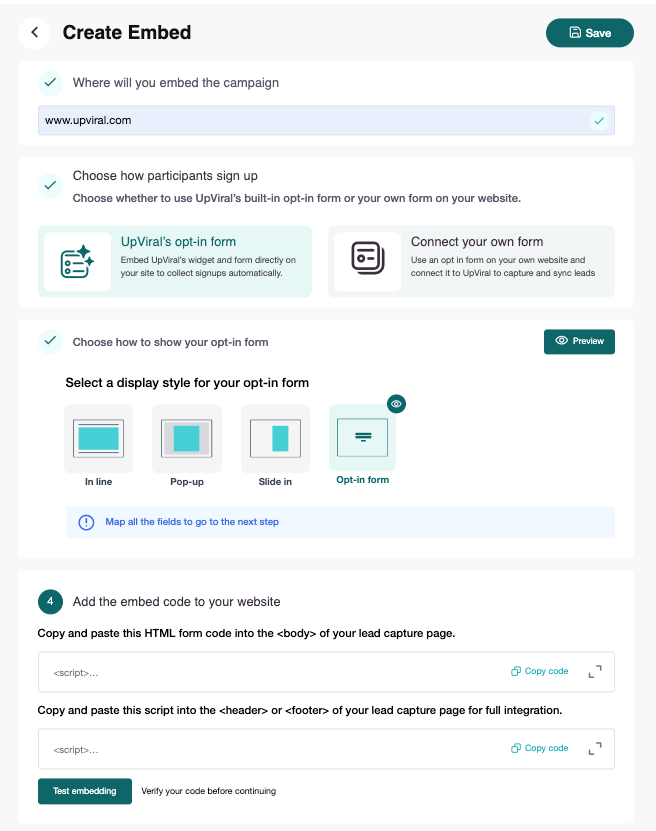
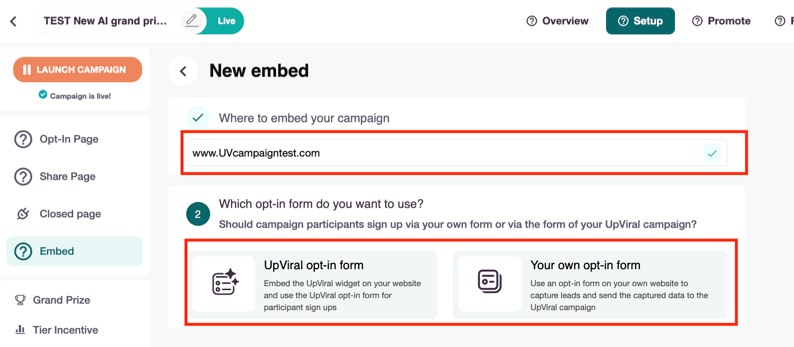
In the Where to embed your campaign field, type the URL of the website where you want the campaign to appear.
STEP 2
Select Your Opt-In Form
Choose UpViral opt-in form to use the built-in UpViral widget.
Alternatively, choose Your own opt-in form if you prefer to use your site’s existing form.
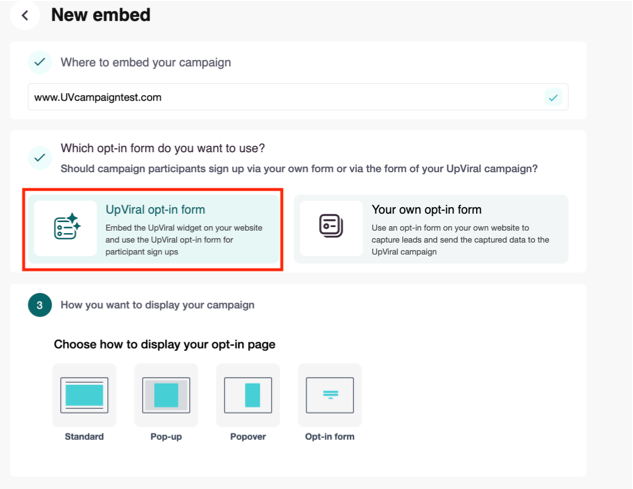
(For this guide, we’ll select the UpViral opt-in form.)
STEP 3
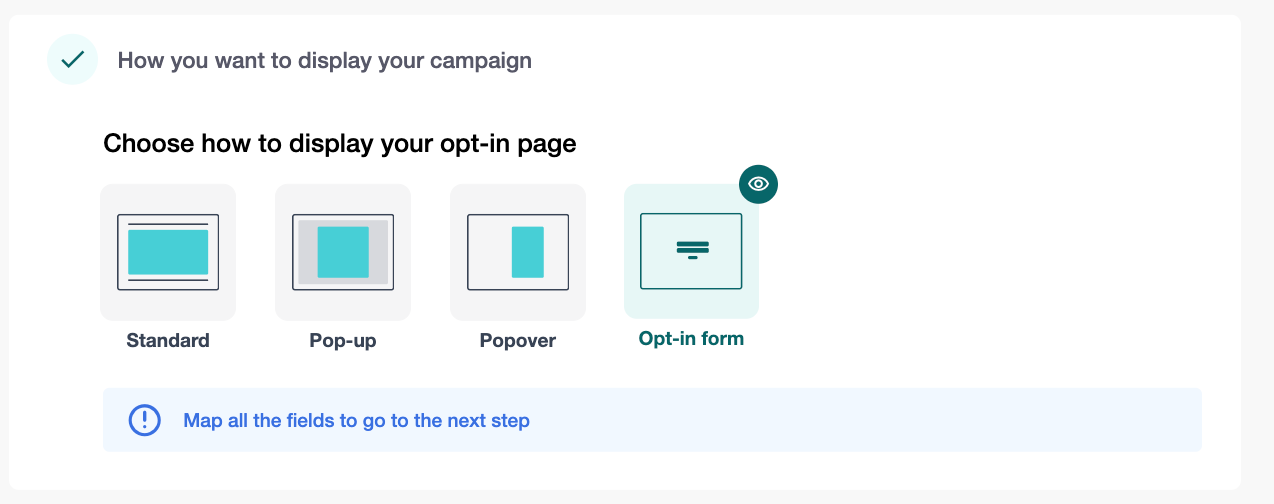
Under How you want to display your campaign, select Opt-in Form.
STEP 4
To display your UpViral campaign, add the following code snippets to your lead capture page:
Add Form Code to the <body>
Copy the HTML form code under Embed this code to your site.
Paste it inside the <body> tag of your lead capture page.
Click Copy code to copy this snippet.
Add Script to Header or Footer
Copy the second code snippet under Copy code.
Paste it into the Header or Footer section of your lead capture page.
Click Copy code to copy this snippet.
Test the Embed
Click Test embedding in UpViral.
Make sure your form appears and works correctly before moving to the next step.
STEP 5
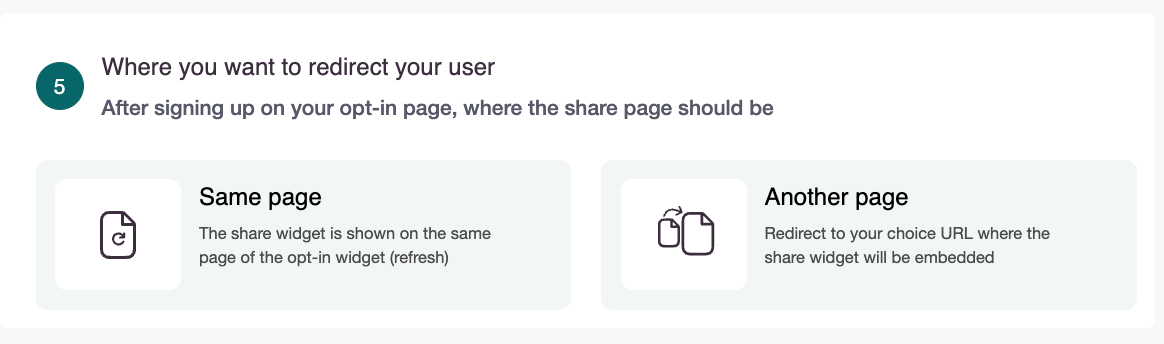
Choose Where to Redirect Users
After a visitor signs up, decide where to display the share page:
Same page – The share widget appears on the same page as your opt-in form (page refreshes).
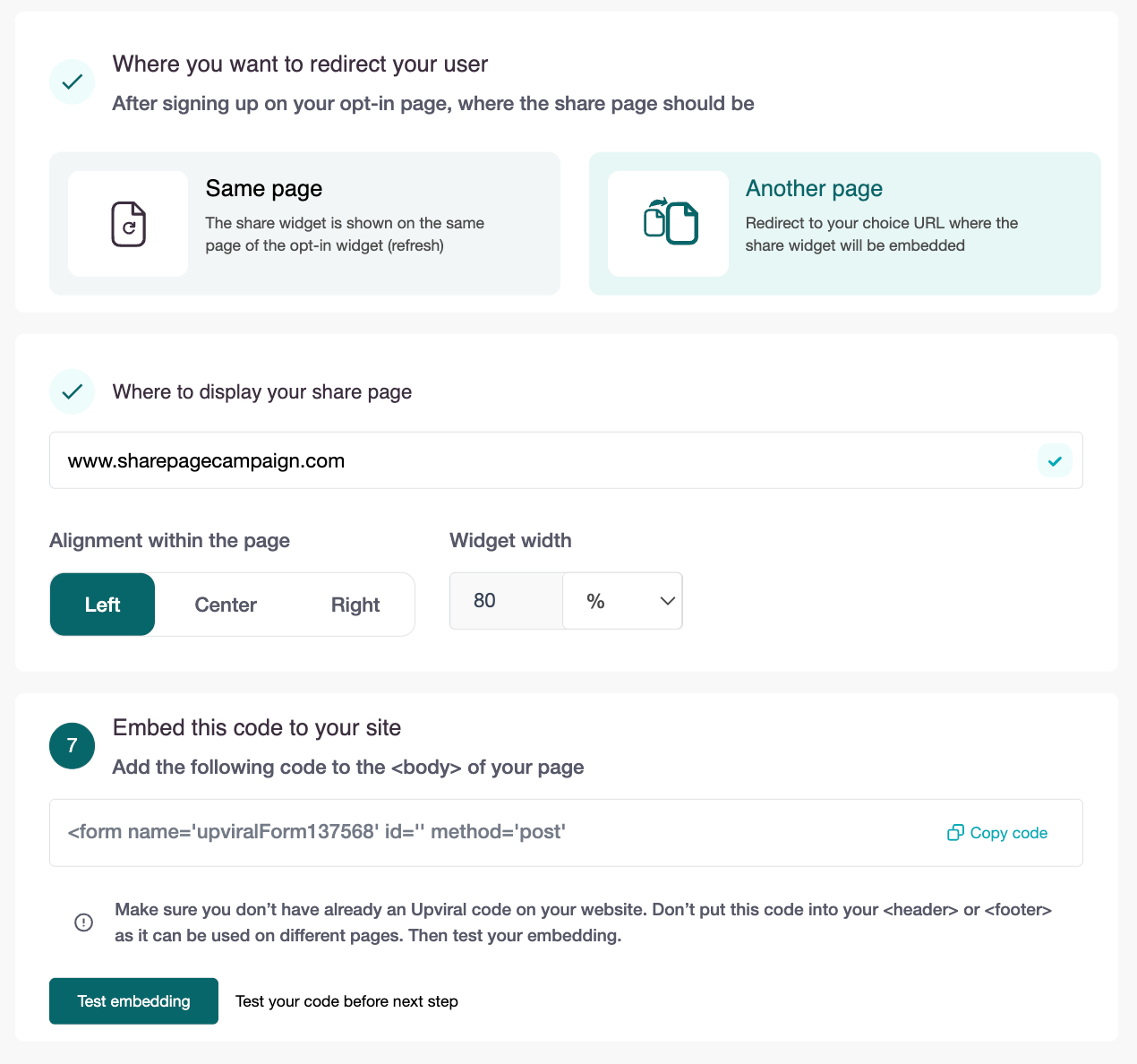
Another page – Redirects users to a separate URL where the share widget will be embedded.
A. If You Select Same Page
The share widget is shown on the same page of the opt-in widget (refresh). PROCEED TO STEP 8
B. If You Select Another Page, follow the steps below:
STEP 6 and 7
Specify Where to Display the Share Page
Enter the URL (e.g., www.UVcampaigntest.com).Adjust Alignment & Size
Alignment: Left, Center, or Right
Widget Width: e.g., 80%
Embed the Code
Copy the snippet provided.
Paste it into the <body> of your page.
⚠️ Important Notes:
Do not embed in the <header> or <footer>.
Avoid embedding multiple UpViral codes on the same page.
Test the Embed: Click Test embedding to verify correct display.
FINAL STEP
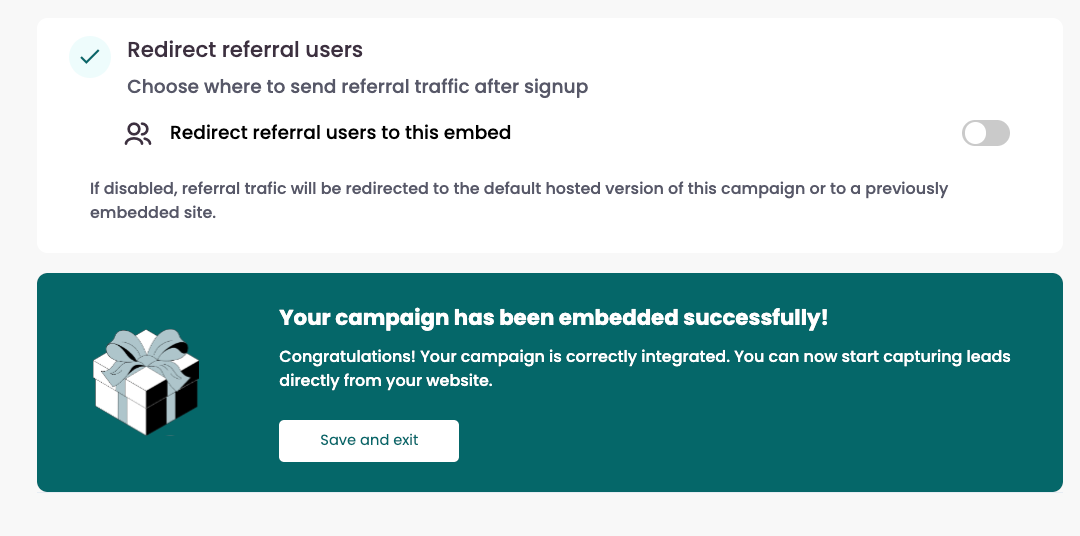
Redirect Referral Users
Decide where referral leads (users who join via a shared link) will be sent:
Redirect referral users to this embed – Sends all referral traffic to this specific embedded version of your campaign.
Switch off – Referral traffic is sent to:
The UpViral-hosted campaign page, or
Any other website where this campaign was previously embedded.
A. You’ll see a confirmation message: “Your campaign has been embedded successfully!” ?
B. Click on Save and Exit to preview your live campaign.
In your Shopify opt-in page editor, click on the "HTML" button, and then paste the Upviral opt-in widget code. Finally, click on "Save" to save the changes.

Return to the Upviral Installation page and copy the code for the Embed Share widget.
In your Shopify Share page editor, click on the "HTML" button, and then paste the Upviral share widget code. Finally, click on "Save" to save the changes. Once both the opt-in and share pages have been edited and saved, publish them.

Congratulations, you have successfully integrated Upviral with your Shopify opt-in and share pages!
How to get your support tickets resolved faster
Statistics have shown us that the more you tell us when you report an issue, the faster we solve that ticket. So...
1 - If you have screengrabs, please include them. A picture is worth a thousand words.
2 - If you have recorded a video showing the issue you're having, please include that as well. A video is worth a million words.
We recommend a free service called Loom for creating these videos. (this is a link to https://www.useloom.com/)
3 - To speed up ticket resolution, follow these useful tips How to Write the Perfect Support Ticket (That Gets Results Fast)
