
This guide outlines a step-by-step process for creating a campaign that can be seamlessly integrated with your Shopify opt-in and share pages. By following the steps outlined below, you will be able to:
- Create an opt-in page and share page in Shopify.
- Integrate the opt-in page and share page codes.
(Note: If you haven't created your Upviral campaign, you may follow the steps on How to create a campaign?)
Step 1 - Before you begin, ensure that you have created your opt-in and share pages on Shopify. Typically, you will need two pages for this purpose.
To get started, log in to your Shopify store Dashboard and navigate to the Online Store menu. From there, select Pages.

Once you are in the Pages section of your Shopify Dashboard, click on the "Add Page" button. You can name this page anything you like, such as "Opt-in Page".
Create another page, such as "Share Page", and then you'll be ready to proceed with setting up an UpViral campaign.

Installation & Embedding Your Campaign
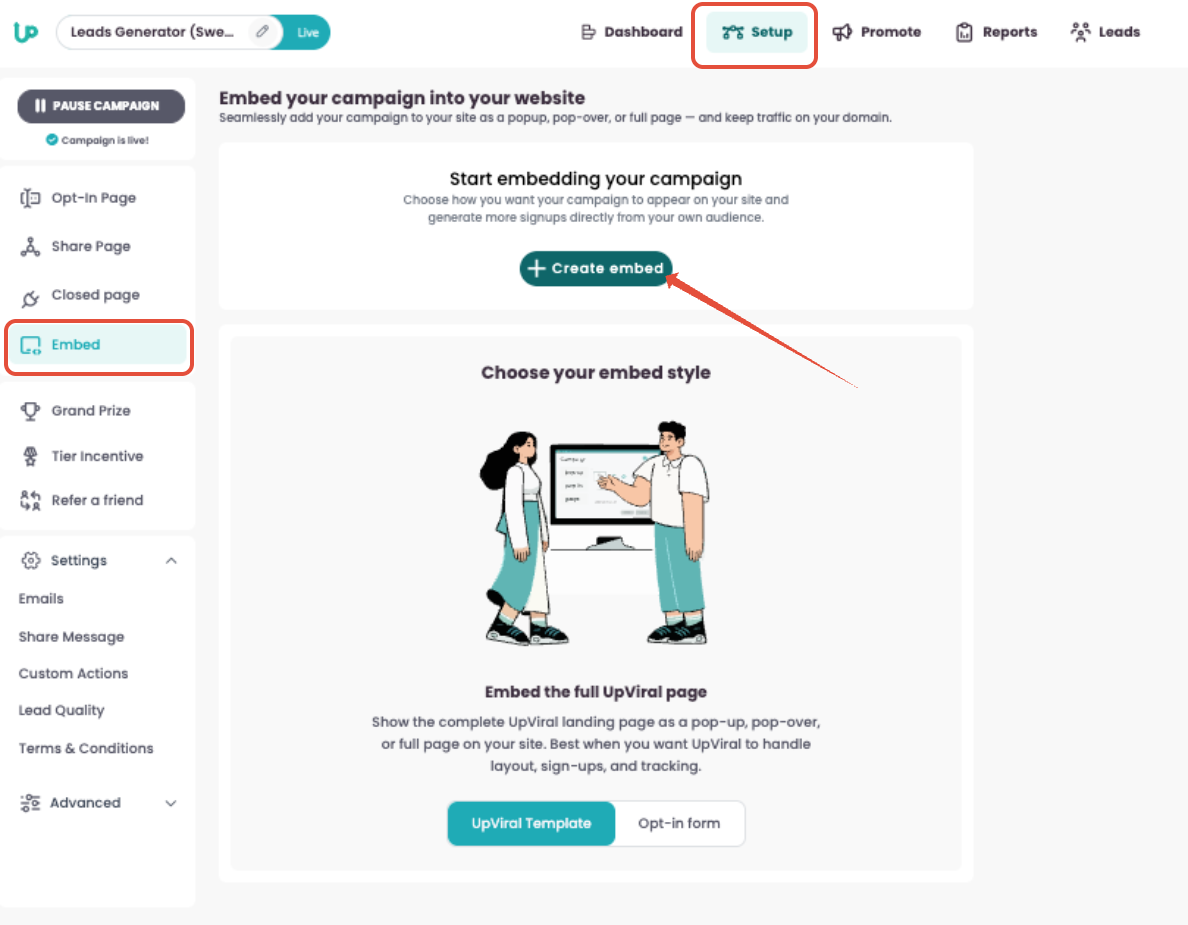
On the SETUP page, click Embed from the left-hand panel. Then click on + Create embed
STEP 1
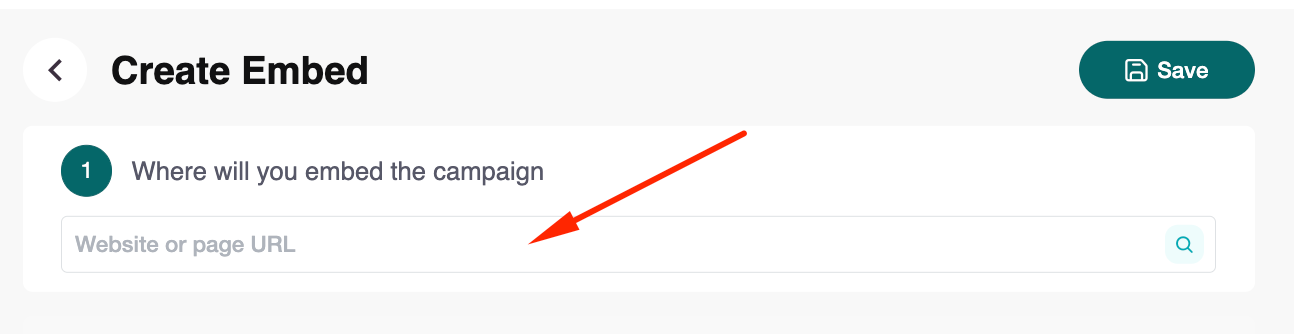
In the Where will you embed the campaign field, type the URL of the website where you want the campaign to appear.
STEP 2
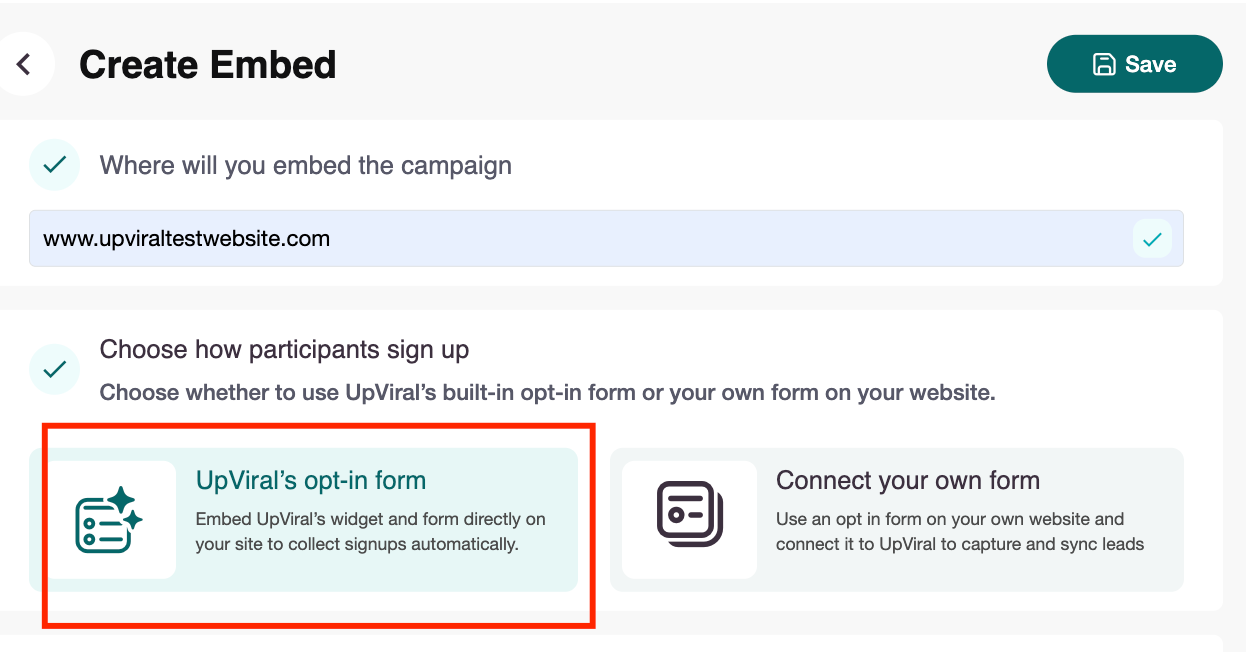
Select Your Opt-In Form
Choose UpViral opt-in form to use the built-in UpViral widget.
Alternatively, choose Connect your own form if you prefer to use your site’s existing form.
(For this guide, we’ll select the UpViral opt-in form.)
STEP 3
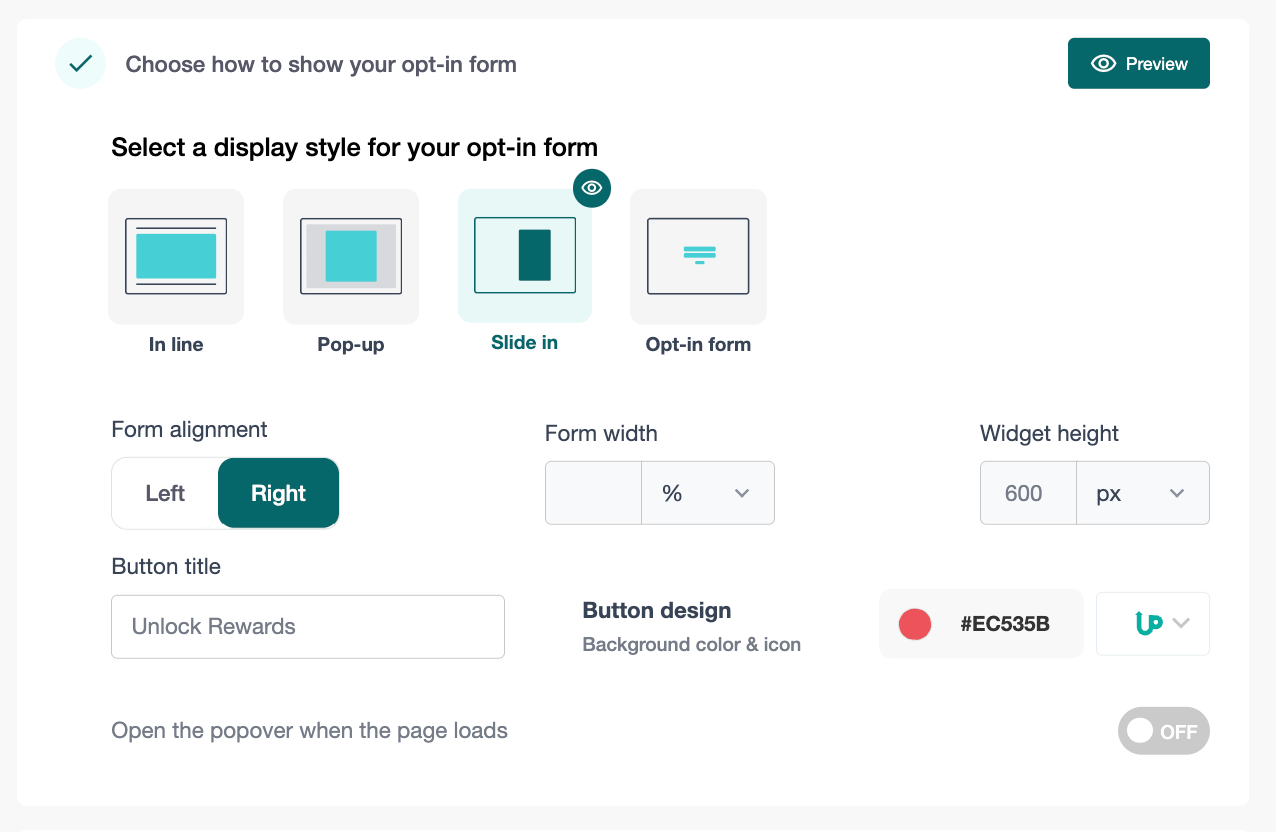
Under How you want to display your campaign, select SLIDE IN.
✅ This option shows a floating widget that expands when clicked.
Configure Slide In Settings
Once you select Popover, adjust these options:
Form Alignment – Choose where the popover widget button appears (Left, Center, or Right).
Form width – Set the maximum width of the popover window (between 250–750px).
Widget height – Set the maximum height (default: 600px).
Button title – Customize the call-to-action text (e.g., “Unlock Rewards”).
Button design – Choose button color and icon to match your site’s style.
Popover mode:
Popover closed upon page load – The button shows first, popover expands when clicked.
Popover opens upon page load – The popover is open by default when the page loads.
Step 4: Add and Test the Embed Code
Add the embed code to your website, then click “Test Embedding” once you’re done.
A pop-up message will appear saying “Keep the tab or popup open for proper testing.”
Simply click “Run Test” to proceed.
If you encounter any issues during the test, try removing and reintegrating the code before testing again.
Step 5: Choose Where to Redirect Users
Choose where participants will access their Share Page after signing up.
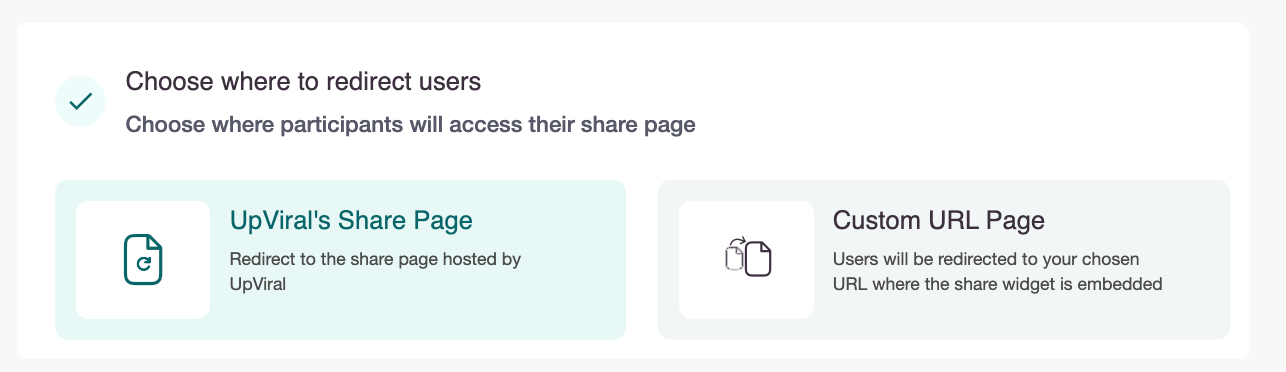
You have two options:
Option 1: UpViral’s Share Page
If you select UpViral’s Share Page, participants will be redirected to the default UpViral-hosted Share Page.
Once this option is selected, proceed to the next step:
Step 6: Redirect Referral Users
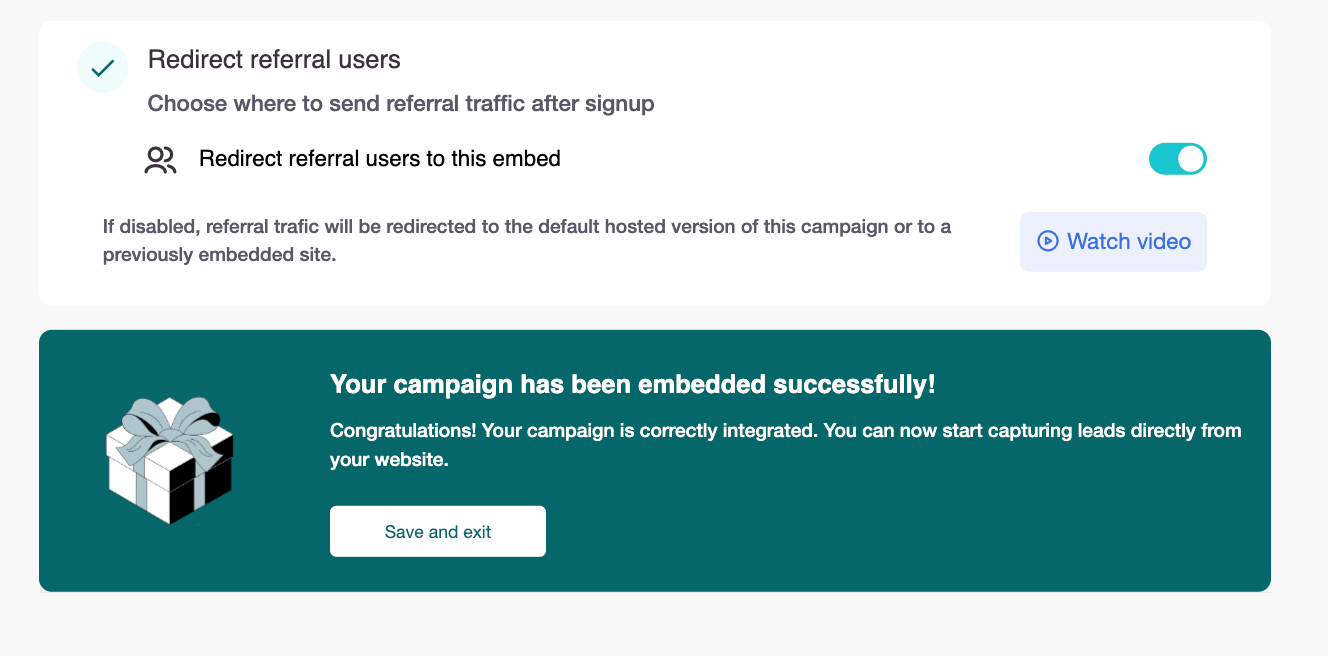
Choose where to send referral traffic after signup.
Redirect referral users to this embed:
Enable this option if you want referral visitors to be directed to the embedded version of your campaign (on your website).If this option is disabled, referral traffic will be redirected to the Upviral-hosted campaign and not to your website
Option 2: Custom URL Page
If you select Custom URL Page, participants will be redirected to your own page where the UpViral share widget is embedded.
Once this option is selected, proceed to the next step:
Step 6: Where to Display Your Share Page
Specify where and how the Share Page should appear on your site.
Website or Page URL:
Enter the exact URL where you’ve embedded the UpViral share widget.Alignment within the Page:
Choose how the widget should appear on the page: Left, Center, or Right.Form Width:
Adjust the width of the form (e.g., 80%) to fit your page layout.Add the embed code to your website where you want the Share Page to appear.
Once added, click “Test Embedding.”
A pop-up message will appear saying “Keep the tab or popup open for proper testing.”
Click “Run Test” to verify the integration.
If you encounter any issues during the test, try removing and reintegrating the code, then run the test again.
Step 7: Embed and Test the Code
(This step applies if you selected Option 2: Custom URL Page in the previous step.)
Add the embed code to your website where you want the Share Page to appear.
Once added, click “Test Embedding.”
A pop-up message will appear saying “Keep the tab or popup open for proper testing.”
Click “Run Test” to verify the integration.
If you encounter any issues during the test, try removing and reintegrating the code, then run the test again.
FINAL STEP
Redirect Referral Users
Decide where referral leads (users who join via a shared link) will be sent:
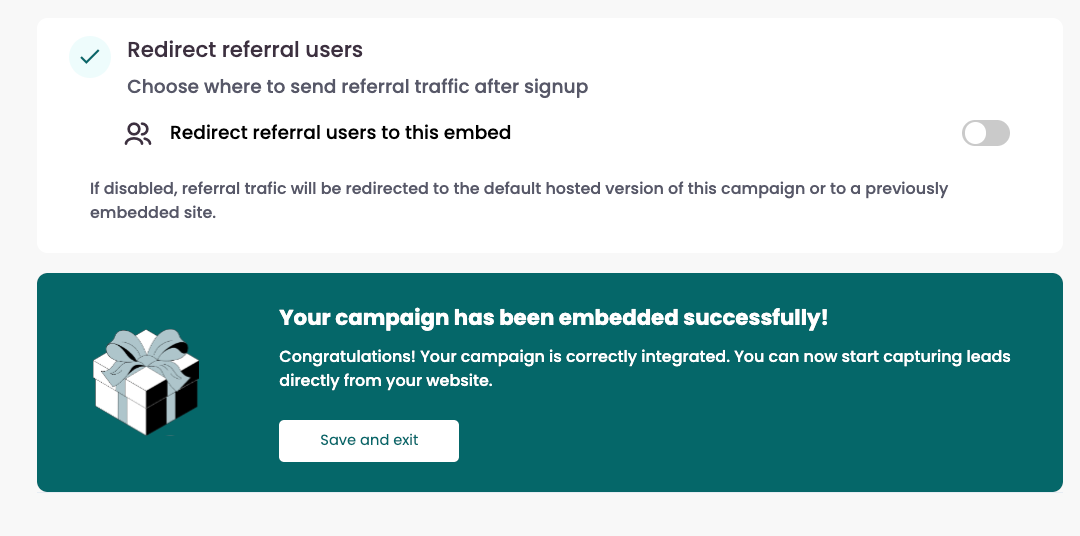
Redirect referral users to this embed – Sends all referral traffic to this specific embedded version of your campaign.
Switch off – Referral traffic is sent to:
The UpViral-hosted campaign page, or
Any other website where this campaign was previously embedded.
A. You’ll see a confirmation message: “Your campaign has been embedded successfully!” ?
B. Click on Save and Exit to preview your live campaign.
In your Shopify opt-in page editor, click on the "HTML" button, and then paste the Upviral opt-in widget code. Finally, click on "Save" to save the changes.

Return to the Upviral Installation page and copy the code for the Share widget.
In your Shopify Share page editor, click on the "HTML" button, and then paste the Upviral share widget code. Finally, click on "Save" to save the changes. Once both the opt-in and share pages have been edited and saved, publish them.
If you encounter any difficulty in adding codes to your webpage, you may contact your web host for assistance.
How to get your support tickets resolved faster
Statistics have shown us that the more you tell us when you report an issue, the faster we solve that ticket. So...
1 - If you have screengrabs, please include them. A picture is worth a thousand words.
2 - If you have recorded a video showing the issue you're having, please include that as well. A video is worth a million words.
We recommend a free service called Loom for creating these videos. (this is a link to https://www.useloom.com/)
3 - To speed up ticket resolution, follow these useful tips How to Write the Perfect Support Ticket (That Gets Results Fast)
