
If you're using your own form on your website and want to integrate it with UpViral, you can easily do so by following the steps below.
Before setting up UpViral, it's important to note that your audience will need to enter their email address in an UpViral form in order for it to work. This can be done through our widget or an HTML form on your own page. Depending on how you plan to integrate UpViral, the installation process will differ slightly.
(Note: If you haven't created your Upviral campaign, you may follow the steps on How to create a campaign?)
Installation & Embedding Your Campaign
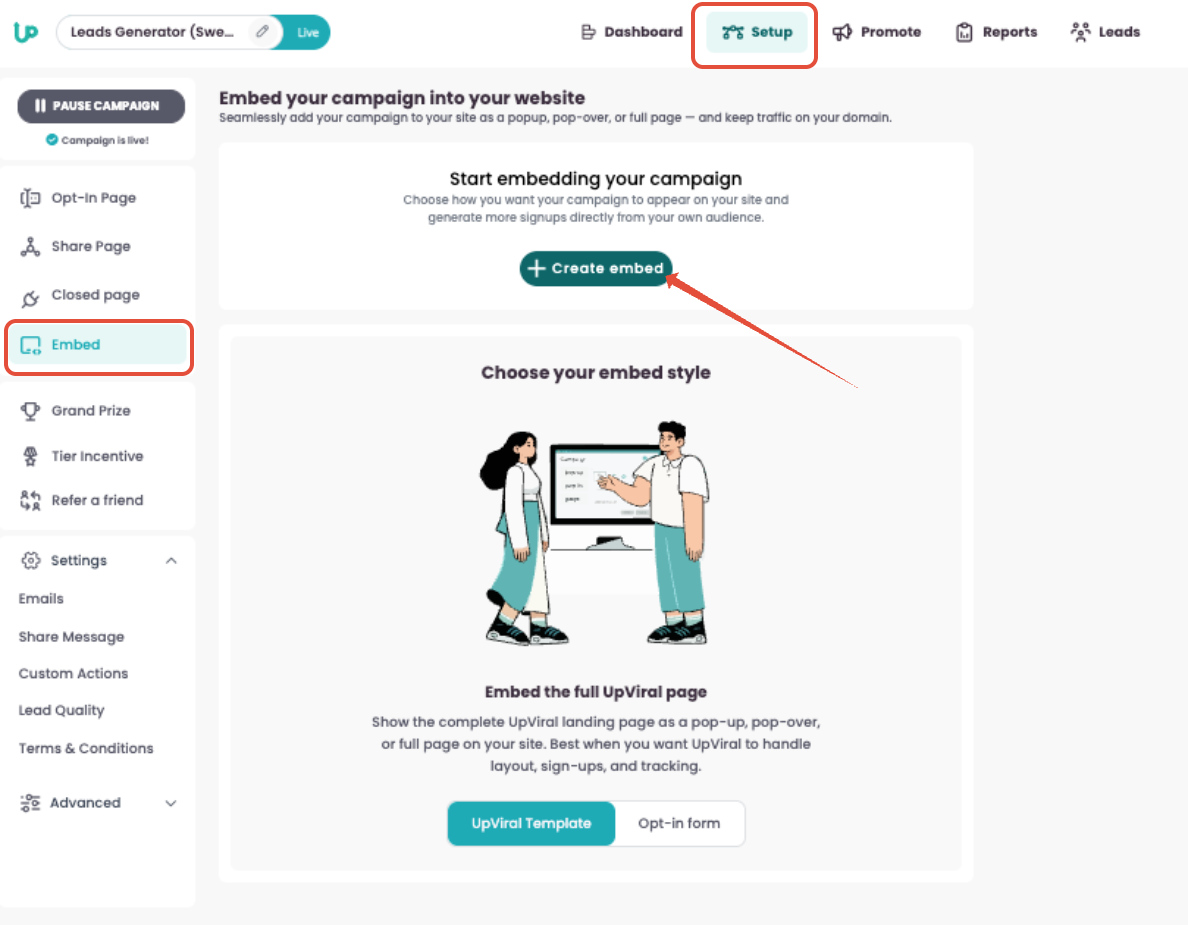
On the SETUP page, click Embed from the left-hand panel. Then click on + Create embed
STEP 1
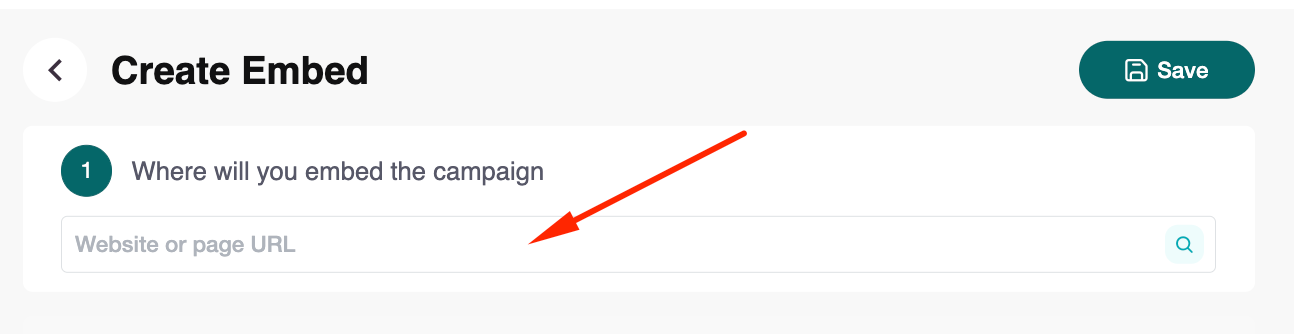
In the Where will you embed the campaign field, type the URL of the website where you want the campaign to appear.
STEP 2
Select Your Opt-In Form
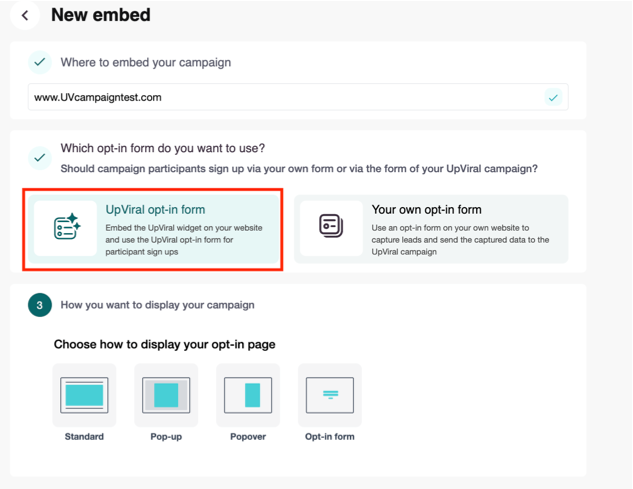
Choose UpViral opt-in form to use the built-in UpViral widget.
Alternatively, choose Your own opt-in form if you prefer to use your site’s existing form.
(For this guide, we’ll select the UpViral opt-in form.)
STEP 3
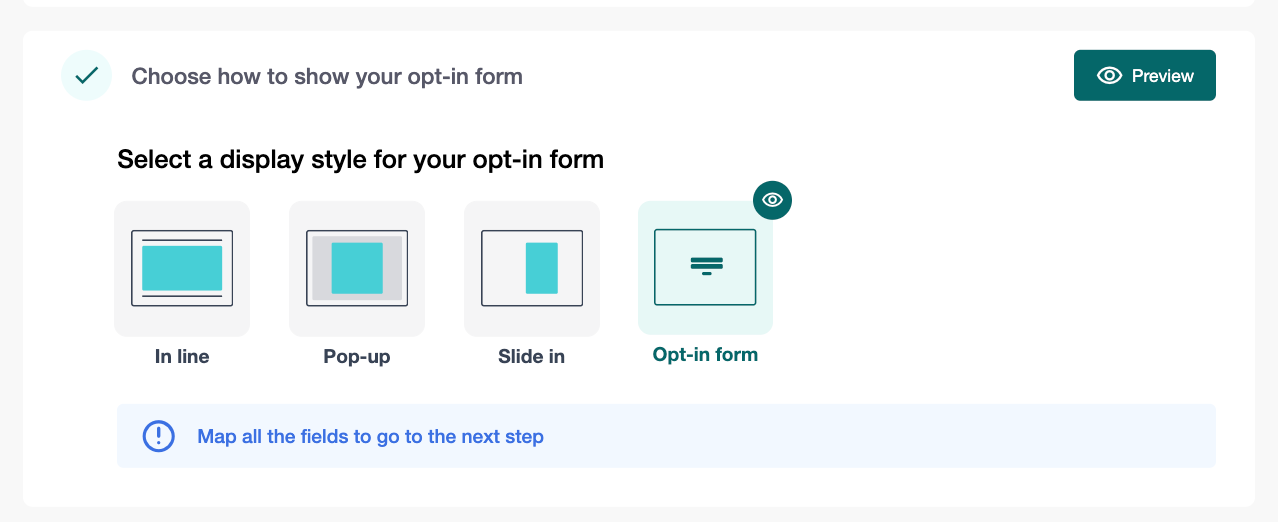
Under How you want to display your campaign, select Opt-in Form.
STEP 4
To display your UpViral campaign, add the following code snippets to your lead capture page:
Add Form Code to the <body>
Copy the HTML form code under Embed this code to your site.
Paste it inside the <body> tag of your lead capture page.
Click Copy code to copy this snippet.
Add Script to Header or Footer
Copy the second code snippet under Copy code.
Paste it into the Header or Footer section of your lead capture page.
Click Copy code to copy this snippet.
Test the Embed
Click Test embedding in UpViral.
Make sure your form appears and works correctly before moving to the next step.
STEP 5
Choose Where to Redirect Users
After a visitor signs up, decide where to display the share page:
Same page – The share widget appears on the same page as your opt-in form (page refreshes).
Another page – Redirects users to a separate URL where the share widget will be embedded.
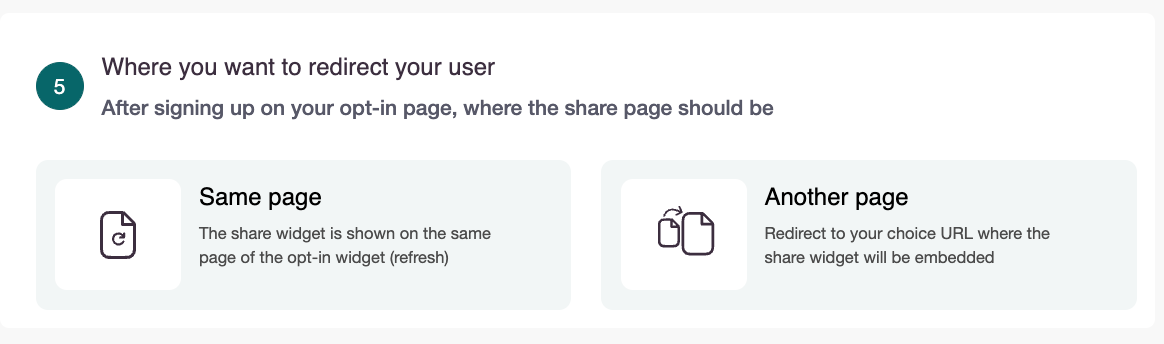
A. If You Select Same Page
The share widget is shown on the same page of the opt-in widget (refresh). PROCEED TO STEP 8
B. If You Select Another Page, follow the steps below:
STEP 6 and 7
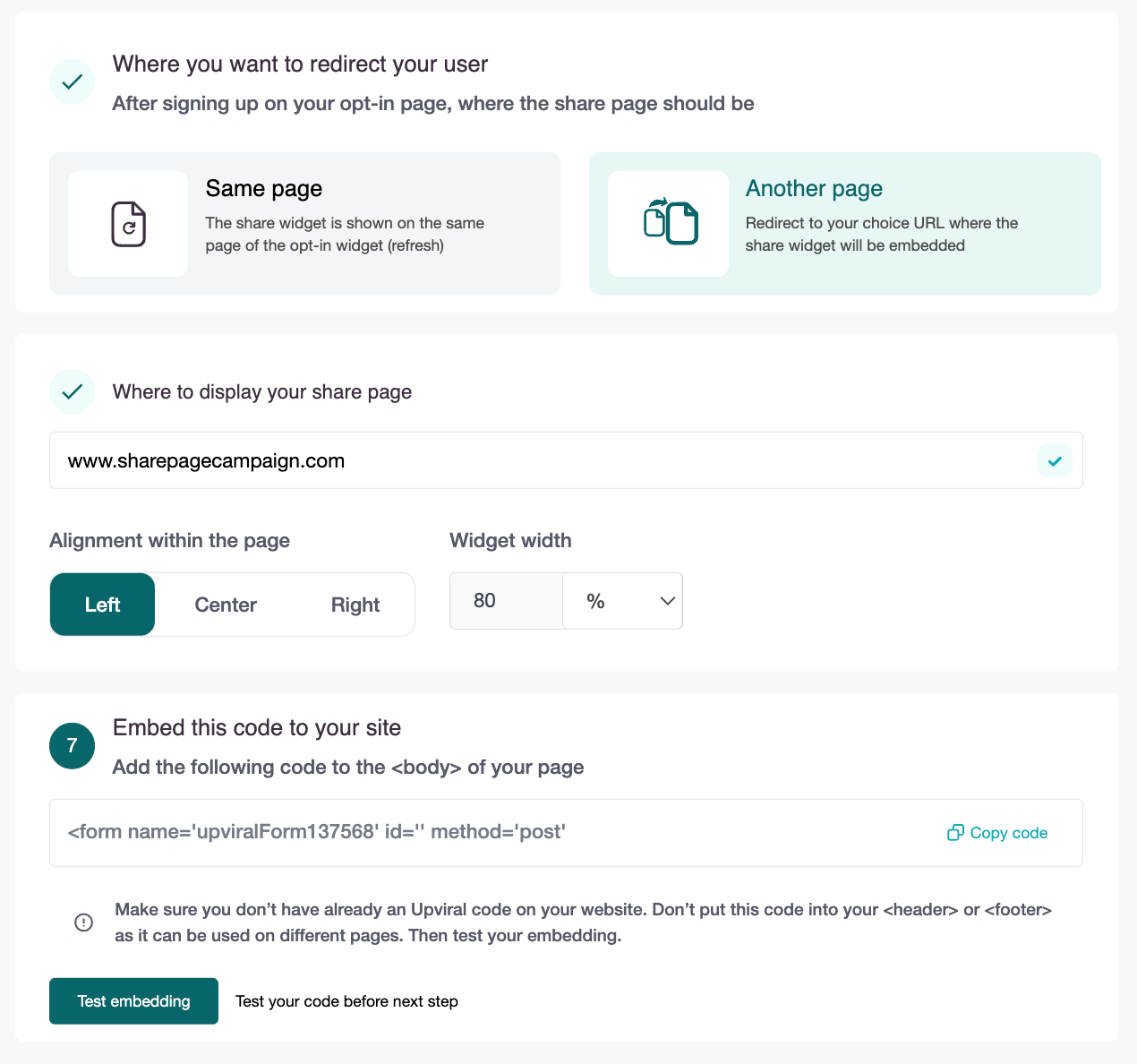
Specify Where to Display the Share Page
Enter the URL (e.g., www.UVcampaigntest.com).Adjust Alignment & Size
Alignment: Left, Center, or Right
Widget Width: e.g., 80%
Embed the Code
Copy the snippet provided.
Paste it into the <body> of your page.
⚠️ Important Notes:
Do not embed in the <header> or <footer>.
Avoid embedding multiple UpViral codes on the same page.
Test the Embed: Click Test embedding to verify correct display.
FINAL STEP
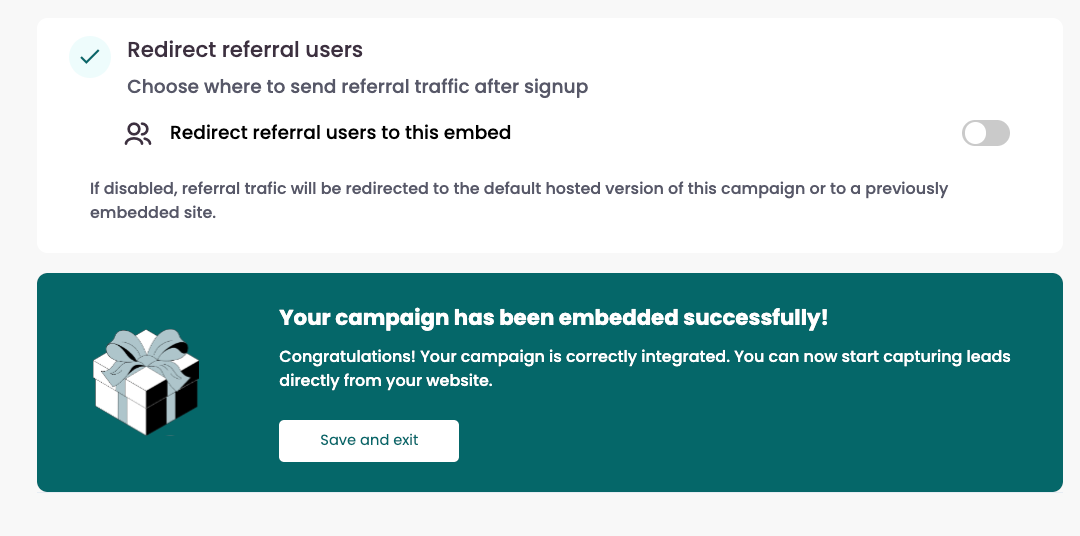
Redirect Referral Users
Decide where referral leads (users who join via a shared link) will be sent:
Redirect referral users to this embed – Sends all referral traffic to this specific embedded version of your campaign.
Switch off – Referral traffic is sent to:
The UpViral-hosted campaign page, or
Any other website where this campaign was previously embedded.
A. You’ll see a confirmation message: “Your campaign has been embedded successfully!” ?
B. Click on Save and Exit to preview your live campaign.
How to get your support tickets resolved faster
Statistics have shown us that the more you tell us when you report an issue, the faster we solve that ticket. So...
1 - If you have screengrabs, please include them. A picture is worth a thousand words.
2 - If you have recorded a video showing the issue you're having, please include that as well. A video is worth a million words.
We recommend a free service called Loom for creating these videos. (this is a link to https://www.useloom.com/)
3 - To speed up ticket resolution, follow these useful tips How to Write the Perfect Support Ticket (That Gets Results Fast)