
This guide provides a step-by-step walkthrough on how to integrate ClickFunnels 2.0 with UpViral, allowing ClickFunnels to act as the autoresponder for your UpViral campaigns.
By the end of this document, you will know:
• How to retrieve your ClickFunnels 2.0 Subdomain
• How to generate your ClickFunnels 2.0 API Token
• How to connect ClickFunnels 2.0 inside UpViral
Prerequisites
Before you begin, make sure you have:
• An active UpViral account
• An active ClickFunnels 2.0 account
Step 1: Get Your ClickFunnels 2.0 Subdomain
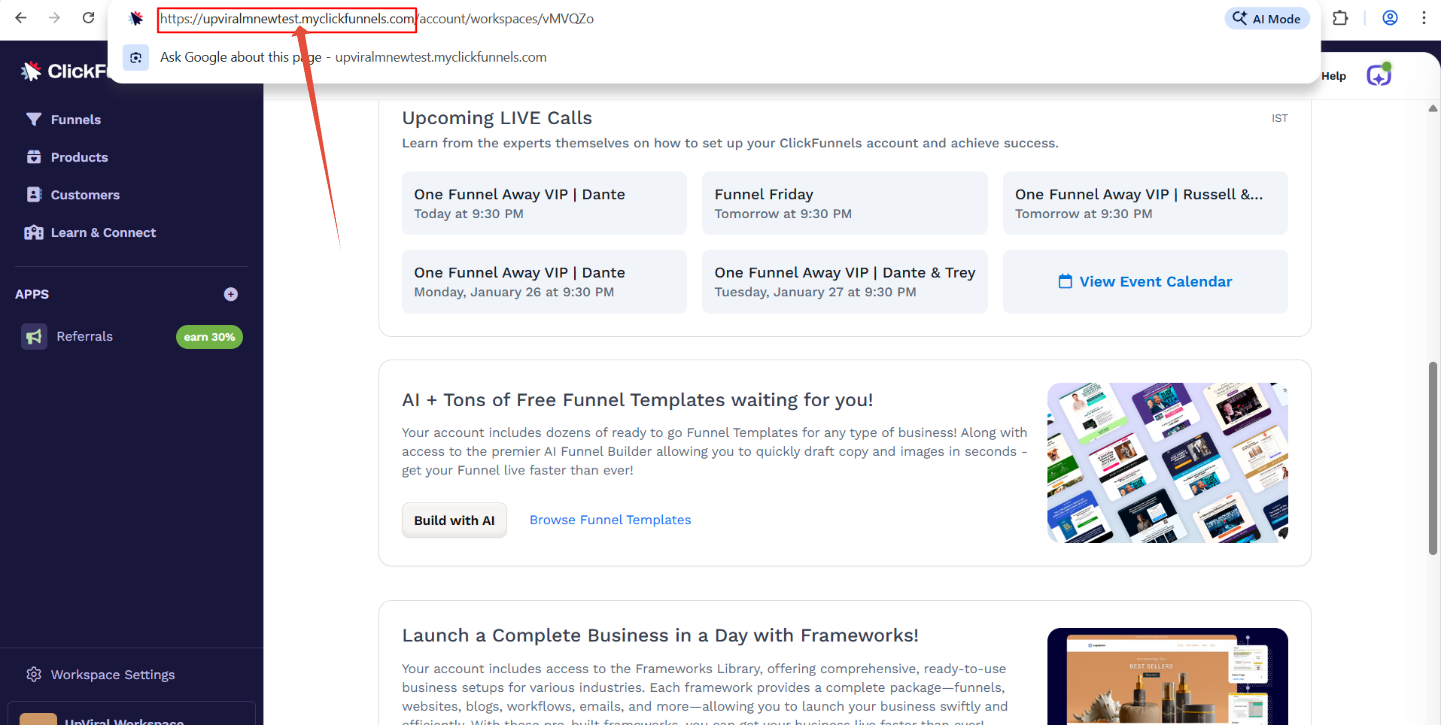
Log in to your ClickFunnels 2.0 account.
Look at the URL in your browser address bar.
Your subdomain will appear in this format:
https://yourworkspace.myclickfunnels.comCopy only the subdomain part, for example:
yourworkspace.myclickfunnels.com
⚠️ Important: Do not include https:// or any trailing slashes.
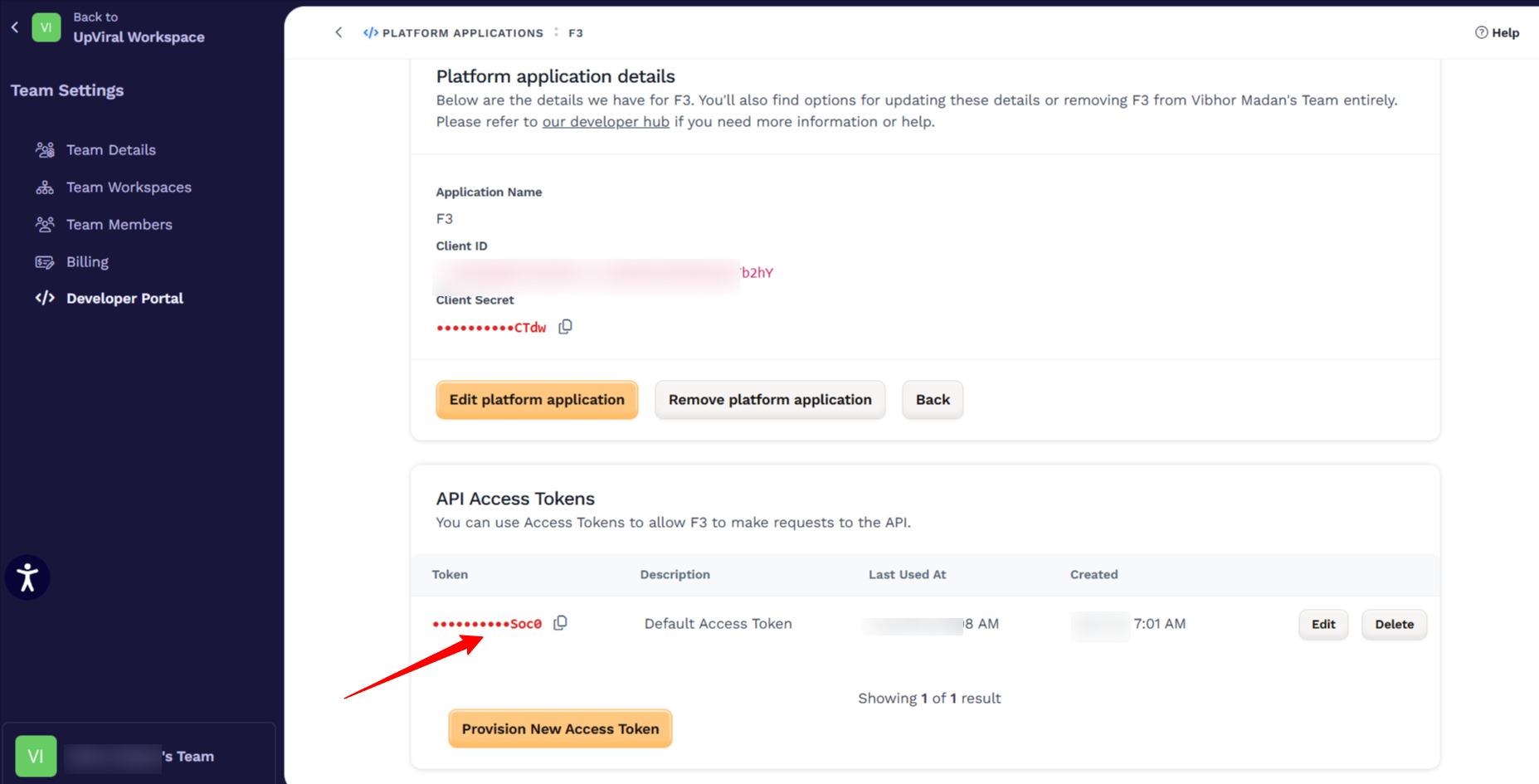
Step 2: Generate Your ClickFunnels 2.0 API Token
The API token allows UpViral to securely send leads to your ClickFunnels contacts.
How to Create an API Token in ClickFunnels 2.0
Log in to ClickFunnels 2.0.
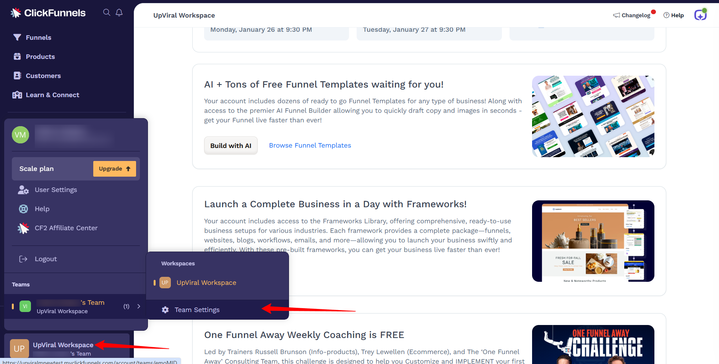
Click on your Workspace in the Lower-Left corner.
Select Team Settings.
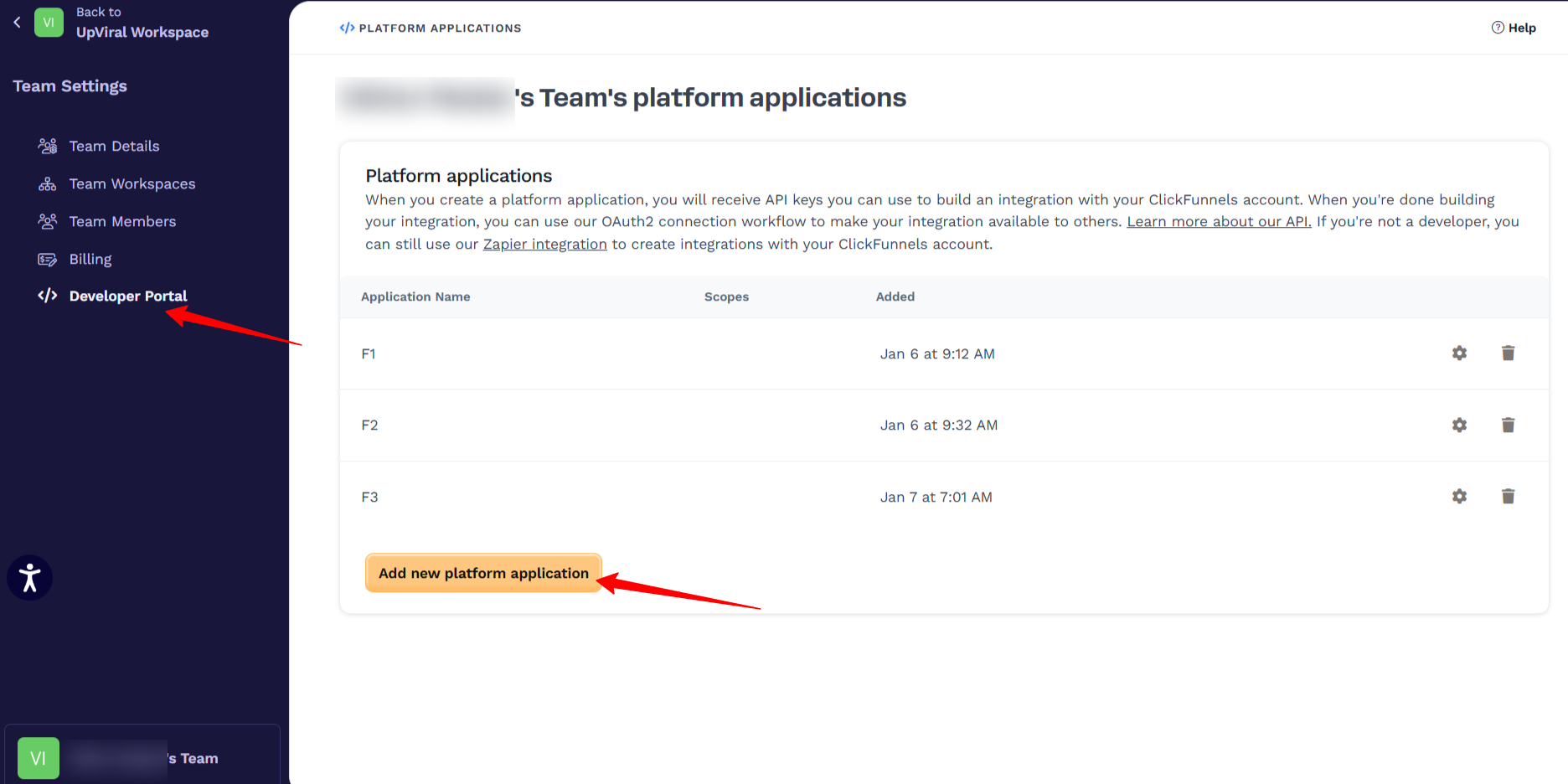
Navigate to Developer Portal
Click Add new platform application
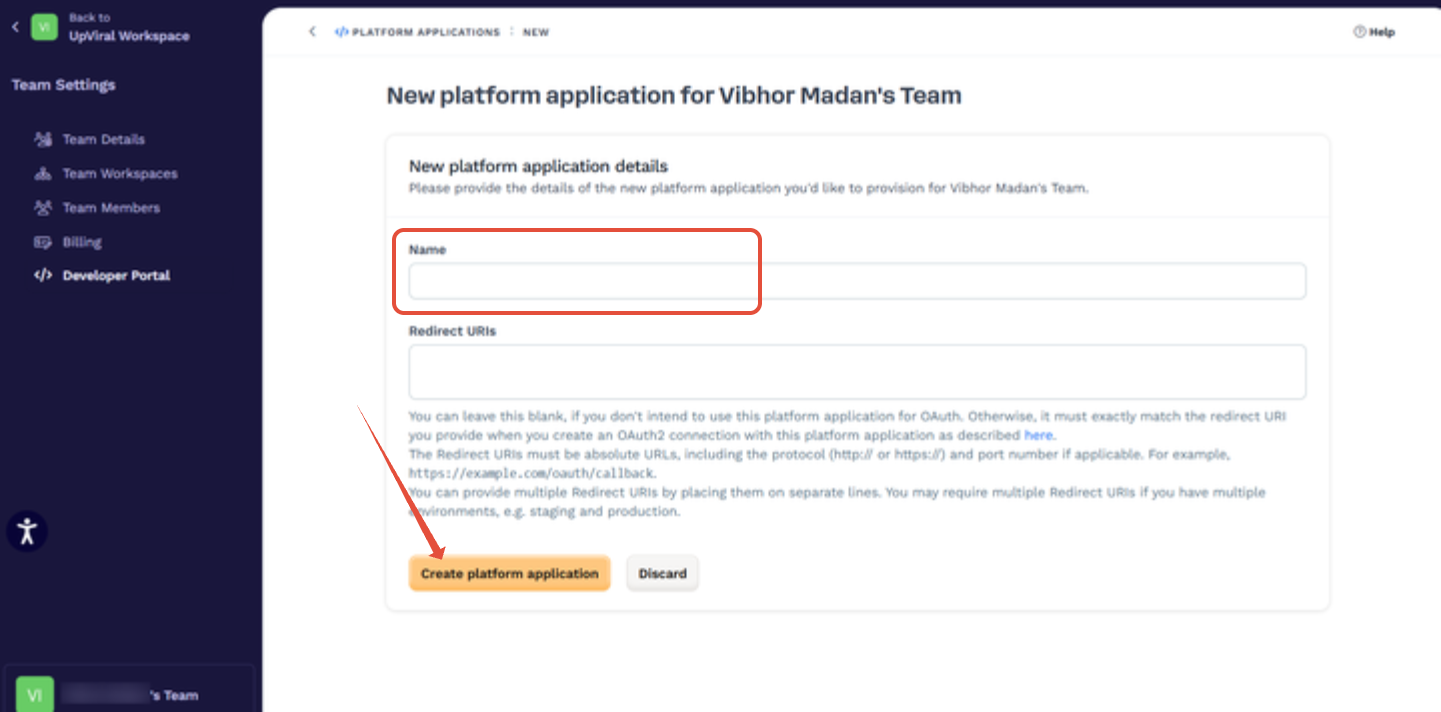
Enter a name (e.g., UpViral Integration). Leave the Redirect URLs BLANK and click on Create platform application.
Copy and securely store the token.
Step 3: Connect ClickFunnels 2.0 Inside UpViral
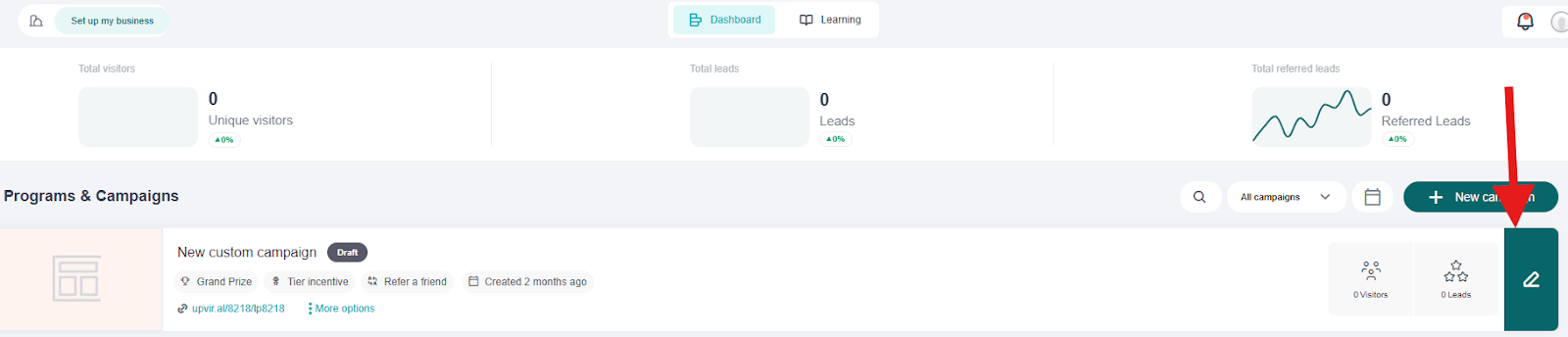
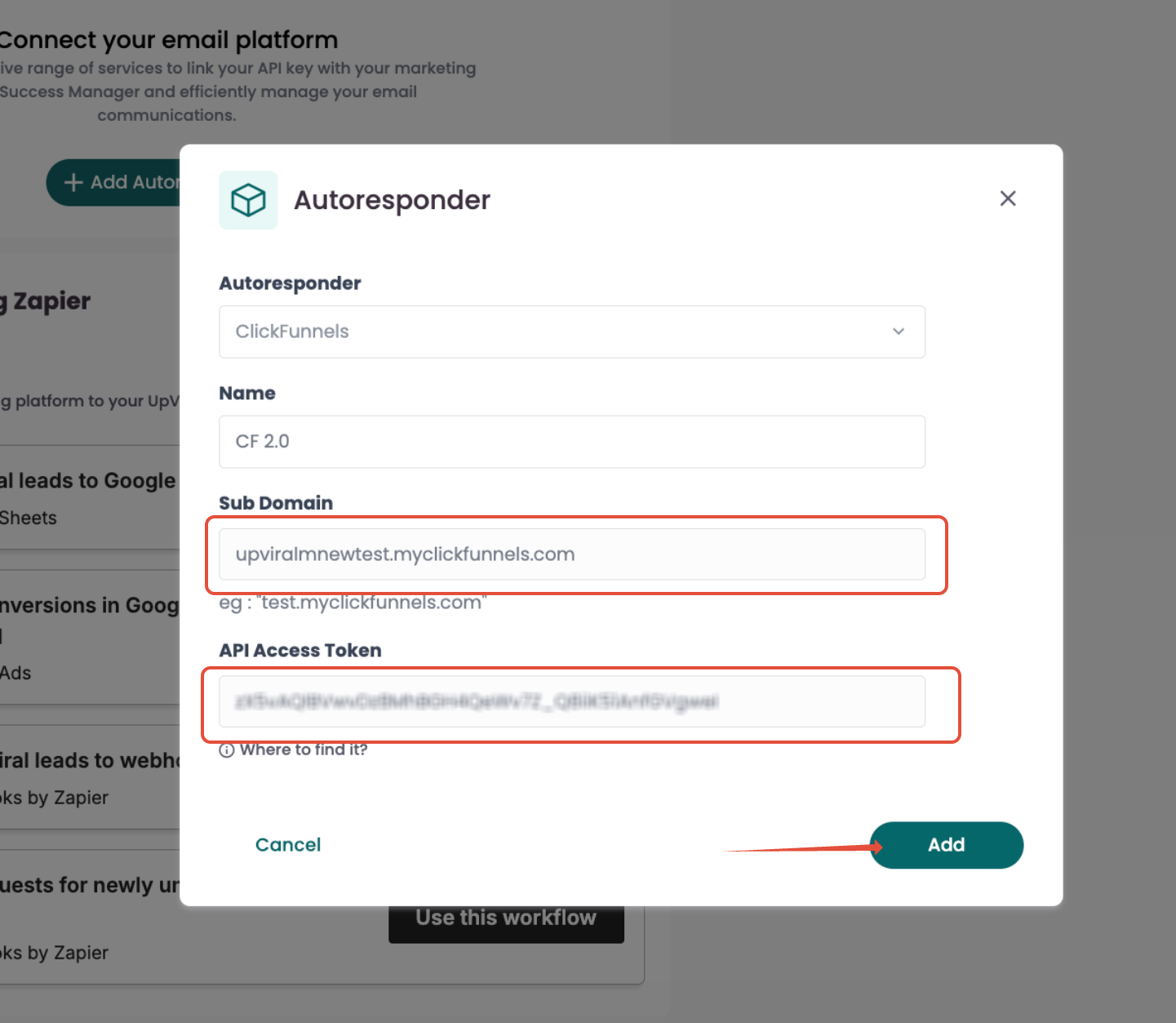
To add your autoresponder to UpViral, login to your UpViral Dashboard and go to the campaign you wish to connect your autoresponder to.
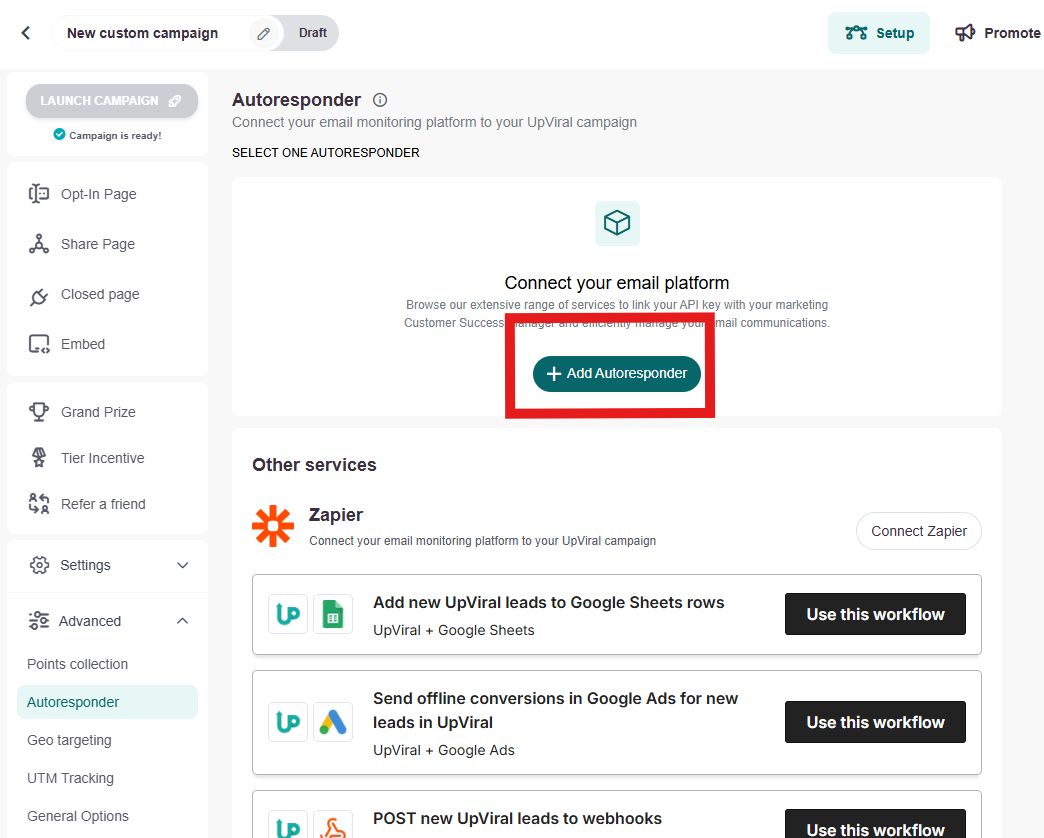
When inside click Advanced > Autoresponder and the "Add autoresponder" button. This will open a pop-up where you can select your autoresponder.
From here, select ClickFunnel from the list of autoresponders and assign a Name
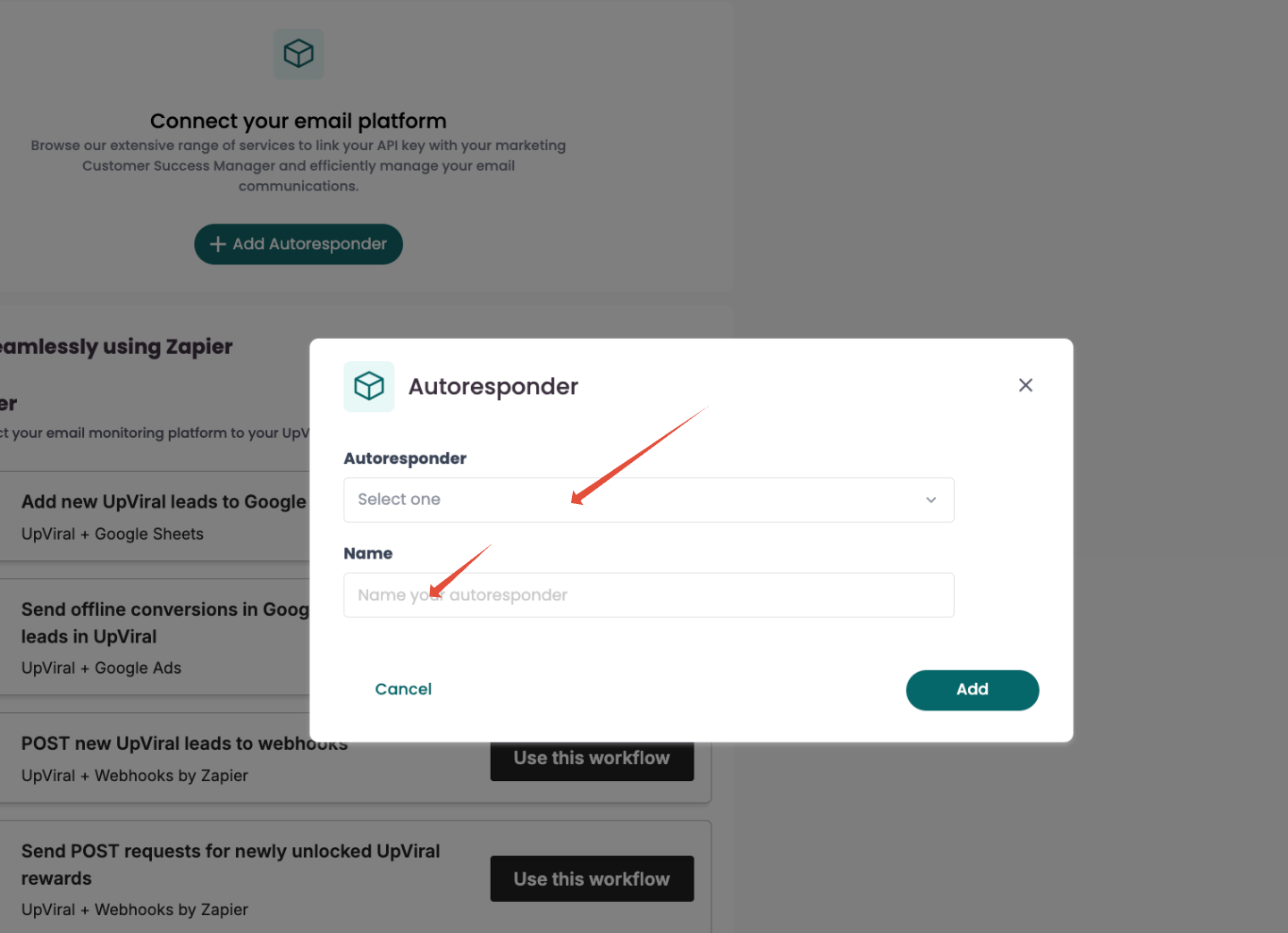
Fill in the following details:
Sub domain
Example: yourworkspace.myclickfunnels.com
API Token Access
Paste the API token generated in Step 2
Click on the Add button to save and integrate.
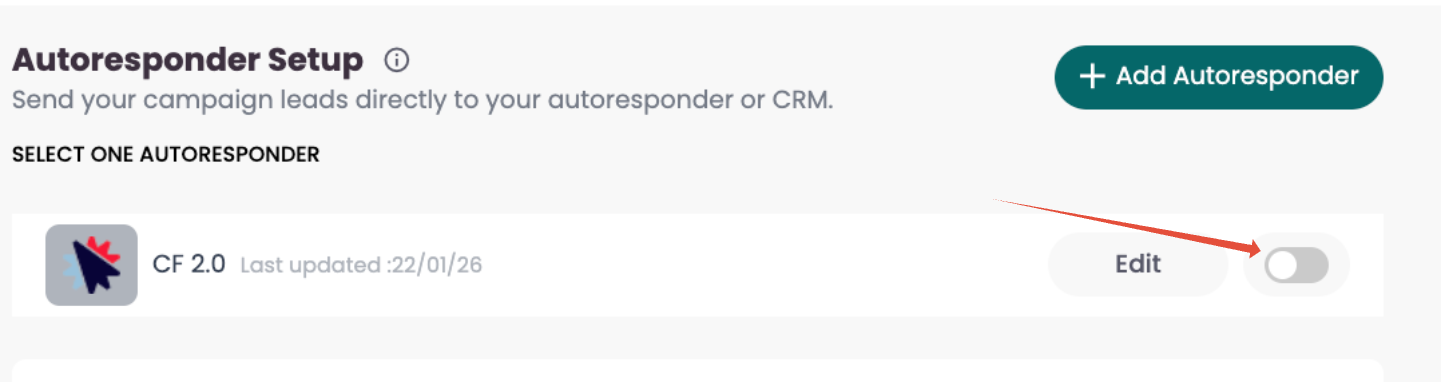
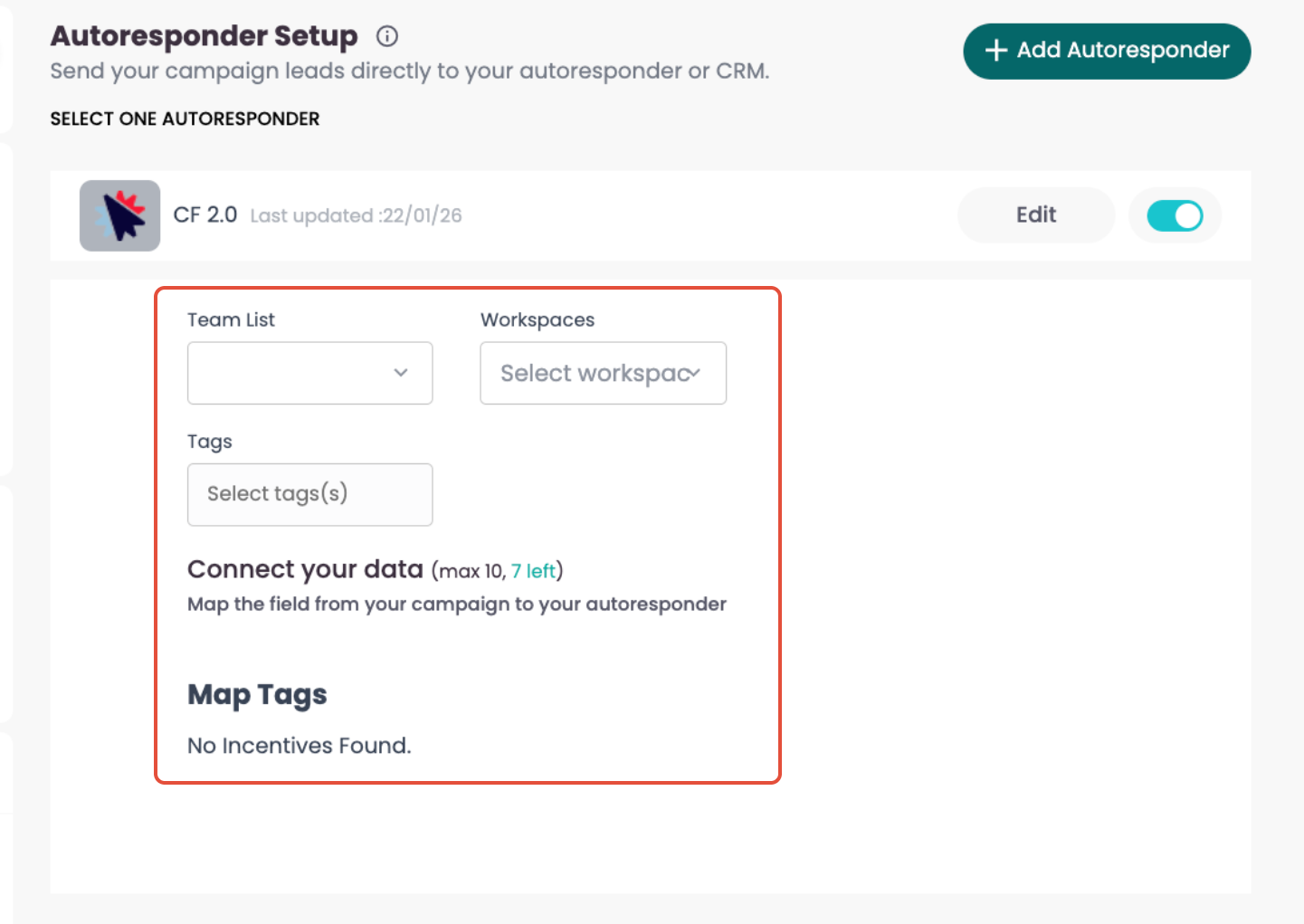
To start using the autoresponder, toggle it on, then select your Team and Workspace.
How to get your support tickets resolved faster
Statistics have shown us that the more you tell us when you report an issue, the faster we solve that ticket. So...
1 - If you have screengrabs, please include them. A picture is worth a thousand words.
2 - If you have recorded a video showing the issue you're having, please include that as well. A video is worth a million words.
We recommend a free service called Loom for creating these videos. (this is a link to https://www.useloom.com/)
3 - To speed up ticket resolution, follow these useful tips How to Write the Perfect Support Ticket (That Gets Results Fast)